Below is a step by step guide on how to add a Yealink device to the Yealink Management Cloud Service (YMCS)
- Log into the Yealink management portal: https://dm.yealink.com/
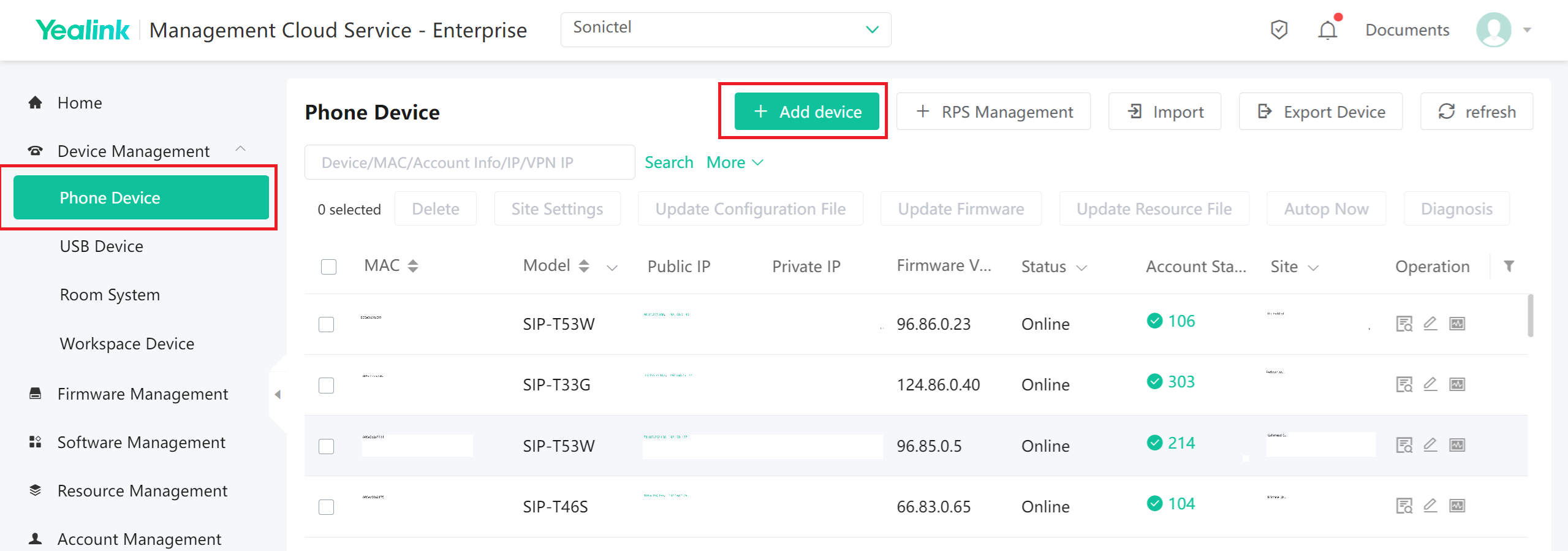
- Under 'Device Management', select 'Phone Device'. See Example 1 below.
- Select '+ Add Device'. See Example 1 below.
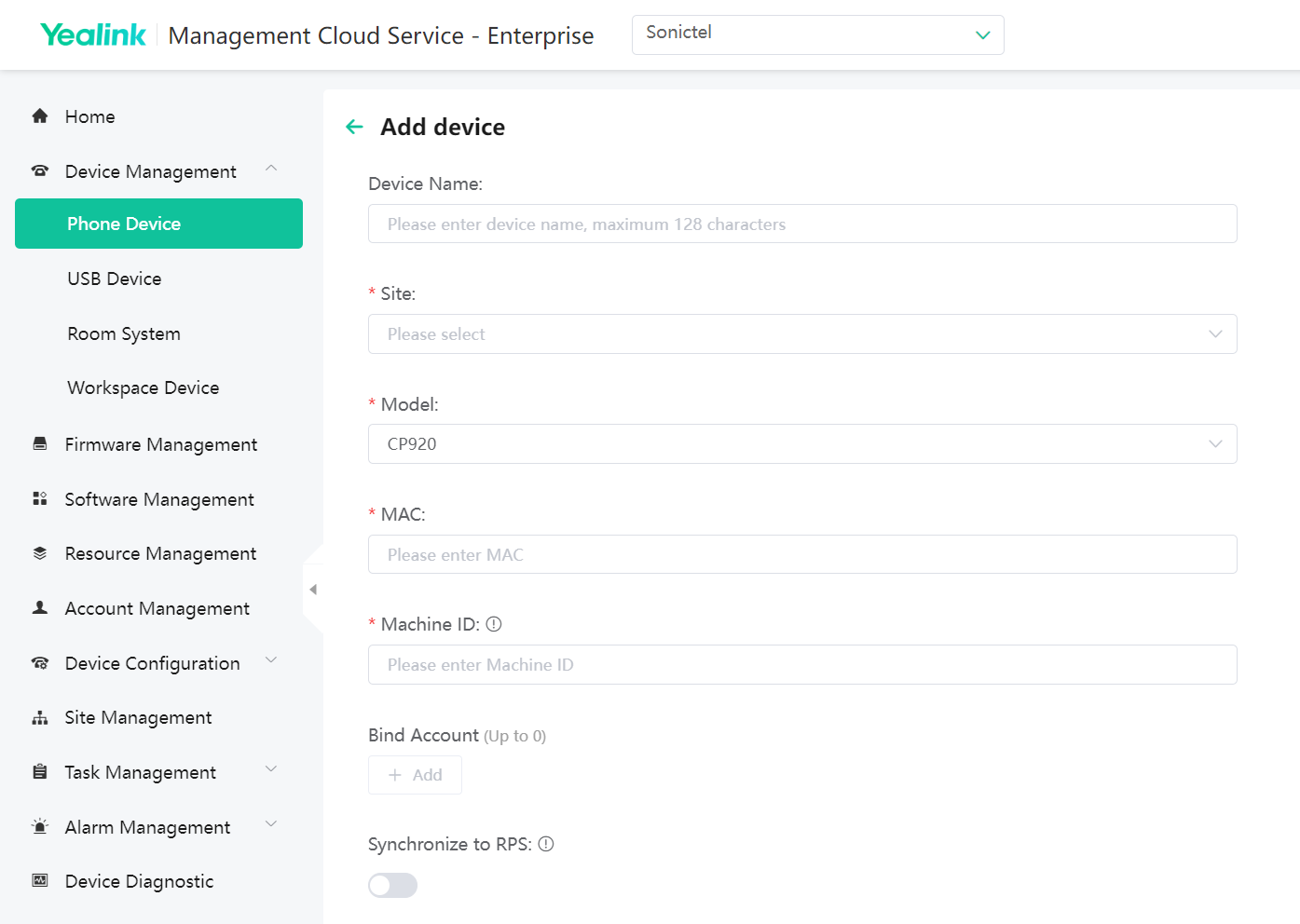
- A pop-up box will appear, enter the following information: See Example 2 below.
- Device Name: friendly name for the device. This should include the customer name and extension. (ex. Sonictel X101).
- Site: Select the site (company name). See XXXX for 'How to Add a Site in Yealink YMCS'
- Model: Select the model of the phone
- MAC: Enter the MAC address of the device
- Machine ID: Enter the serial number of the device
- Bind account: You do not need to select this
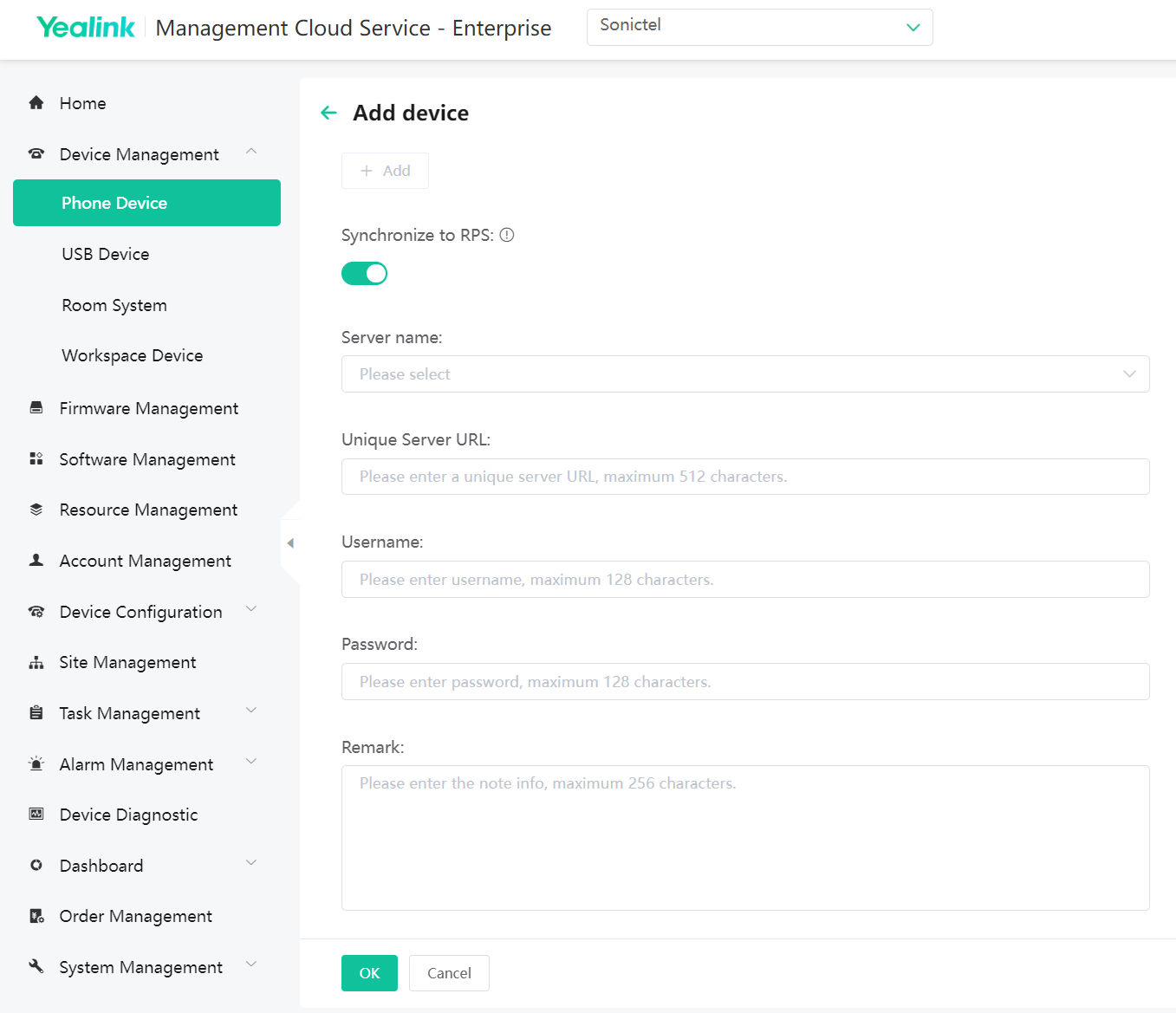
- Synchronize to RPS?: Click the toggle to turn this feature ON
- Server Name: Skyswitch-Sonictel
- Unique Server URL, Username, Password and Remark can be left blank.
- Click 'OK' at the bottom of the page
- At this point, once you reboot the phone you should see the device reporting to the portal.
EXAMPLE 1:
EXAMPLE 2:
Was this article helpful?
That’s Great!
Thank you for your feedback
Sorry! We couldn't be helpful
Thank you for your feedback
Feedback sent
We appreciate your effort and will try to fix the article