How to setup Adtran unit to enable the web gui interface.
This must first be setup via terminal mode
Once the below has been set
Then, change your PC ip4 address to 10.10.10.99 to be in the same subnet as the Adtran
Type 10.10.10.1 in browser
user - admin
pass = password
How to Enable GUI on an Adtran Netvanta Router or Switch
Enabling the GUI interface on your Adtran router can make configuring the switch much more convenient for the end user. But to enable it there are some commands you need to know.
First, you need to connect your Adtran router or switch to your computer to edit the router's settings. To do this, we use a 9 pin straight through serial cable to hook up the router to computer (like the cable shown in the image below).
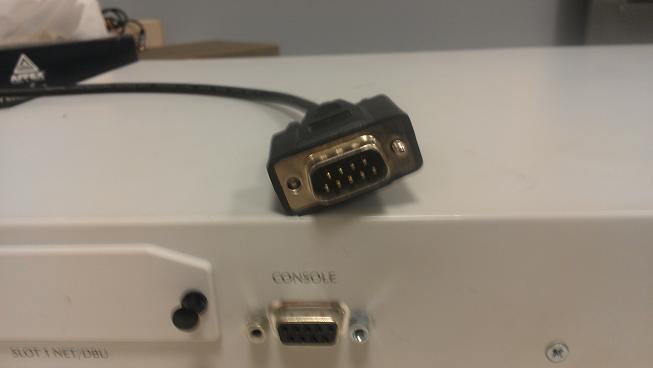 |
| 9 PIN Serial Cable |
- Serial Connection
- 9600 Baud
- No parity bits
- 1 stop bit
- No flow control
Press ENTER to activate the routerNow that you've booted up your router, the following commands are used to set up the router's GUI:
Change your computer's IP Address on the IPv4 protocol to reflect the same subnet as the router 10.10.10.x. Instructions can be found here.
Setting up the router's GUI via console
Anything with an Ethernet port ETH 0/1 (Total Access, 900 Series, etc.)
- Switch>enable
- Switch#configure terminal
- Switch (config)#ip http server
- Switch (config)#username admin password password
- Switch (config)#no ip firewall
- Switch (config)#int eth 0/1
- Switch (config-intf-eth 0/1)#ip address 10.10.10.1 255.0.0.0
- Switch (config-intf-eth 0/1))#no shut
- Switch (config-intf-eth 0/1))#end
- Switch (config)#exit
- Switch#write
Was this article helpful?
That’s Great!
Thank you for your feedback
Sorry! We couldn't be helpful
Thank you for your feedback
Feedback sent
We appreciate your effort and will try to fix the article