from Ray OIT
Upgrade from Verizon One Talk
To get a Verizon One Talk Yealink provisioned with the PBX, it must be on compatible firmware. Compatible firmware is publicly available. Verizon uses a proprietary firmware that forces it to provision with their platform, outside of the YMCS or RPS platforms that Yealink offers. The steps below are what worked for us, however, it is possible that similar steps could work, depending on the firmware version of the Verizon One Talk Yealink device.
First, we must get the Verizon One Talk Yealink off of its proprietary firmware. Here's how:
- If you have an AC Adapter with an Ethernet cable, unplug the Ethernet cable to cut the device's internet.
If using PoE power, your situation may be more complex. You need to find a way to make the device be on the local network without reaching out to the public internet. Blocking it's internet access using Firewall rules, or simply making its DHCP lease have improper DNS could work here. - Hold the OK button for 7-10 seconds until the Factory Reset? screen appears. Select OK
- When the phone comes back on, navigate into Menu > Advanced > Network.
In this menu, we have 2 steps to take:- Go into Web Server, here, you will find that the HTTP Status is set to Disabled, set it to Enabled, and press Save. After saving, it will prompt you to reboot, but you do not need to here, you can safely press cancel, and it will save the setting.
- Now, go into the WAN Port option, followed by the IPv4 option. Here we should see the Type set to DHCP. We are going to set it to Static and enter the following settings:
- IP Address: Set this to a valid IPv4 Address on your network, the IP address the phone had before factory resetting should work for our short time needing this setting.
- Subnet Mask: 255.255.255.0
- Default Gateway: 7.7.7.7
- This setting in the Gateway intentionally breaks the internet access of the device while keeping local connectivity.
- For Example: [b838a7b4-54d8-4ca8-8402-903f4f6146aa]
When you save the "WAN Port" settings, it will prompt you to reboot, you can reboot now.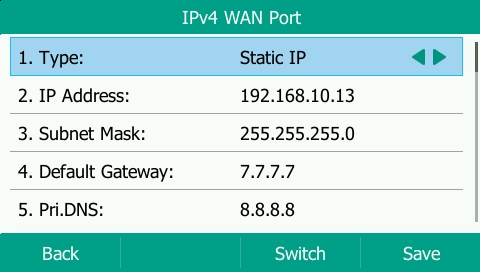
- Upon fully booting, the phone may show connectivity errors, that is okay and expected for this process.
- Plug in your ethernet cable again.
- Navigate to the IP address of the phone that was set in a browser.
- In the browser, we may now follow the steps shown at the top of this document Yealink: Perform A Firmware Update (voipdocs.io).
Note: We found on T46S models that upgrading to the newest firmware would fail, however, upgrading to 66.85.0.5 worked. - Now that the phone is on the new firmware, you may update to an even newer version, or factory reset the device once more by holding down the OK button.
- Once factory reset, the device will now reach out to YMCS/RPS for provisioning, or you may follow a manual provisioning process.
Was this article helpful?
That’s Great!
Thank you for your feedback
Sorry! We couldn't be helpful
Thank you for your feedback
Feedback sent
We appreciate your effort and will try to fix the article