Working with Voicemail
Accessing Voicemail
The Default Voicemail numbers are:
5000
Internally from any extension on the PBX (User will be prompted for their extension number and password).
5001
Internal from the extension of the User checking Voicemail (the user will only be prompted for a password).
Voicemail PINs
The following PIN numbers are blocked for security reasons, and cannot be used in the Portal.
0000, 1111, 2222, 3333, 4321, 4444, 5555, 6666, 6789, 7777, 8888, 9876, 9999, 1234, 12345, 123456, 4321, 54321, 654321, 98765
Users with PIN numbers 1234 and 123456 after 12/24 will have their dial permission set to US and Canada Only. This policy is being implemented in our continuing effort against fraud prevention.
Accessing Voicemail from Outside the Phone System
Get to your voicemail prompt by dialing a DID, or through an Auto-Attendant (AA). Once you hear your voicemail greeting press star(*) to be prompted for your password.
FAQs: Sonictel has a default max length of 5 minutes per voice mail message. Each user has 100mb of space to utilize. No automatic clean out or deletion is forced, the user has full control.
What is Enhanced Voicemail?
Enhanced Voicemail (also referred to as Enterprise Voicemail) is a treatment that gives the caller an option to try a different extension before prompting them to leave a message.
Call Flow with Enhanced Voicemail
- The caller dials a DID or extension number
- Caller hears the called party's voicemail greeting
- The caller hears "To dial another extension press 1, to leave a voicemail press 2 or simply stay on the line" (at this point, the caller can also dial 0 to reach the Operator extension).
- If option 2 is chosen, the caller hears "Please leave a message after the tone".
Call Flow with Enhanced Voicemail Disabled
- The caller dials a DID or extension number
- Caller hears "Your call is being forwarded please hold"
- Caller hears the called party's voicemail greeting
- The caller hears "Please leave a message after the tone".
Voicemail Graphical Options Menu
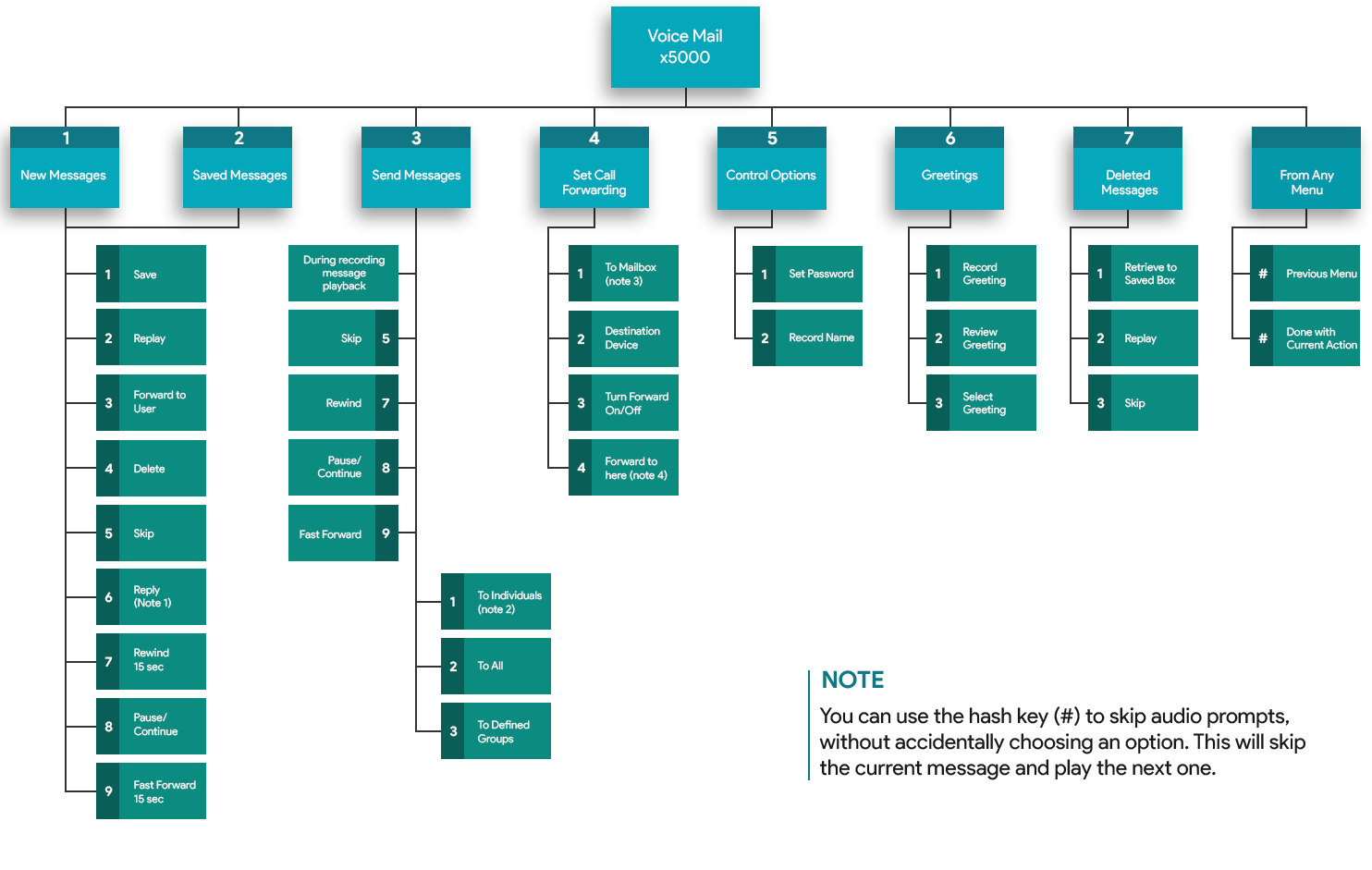
Click here for high-resolution image

Setting up a General Voicemail Account
Scenario
Your customer would like to have the Message Waiting Indicator (MWI) for a shared voicemail account be activated on multiple phones. You can accomplish this by creating the shared account as an additional line on the desired extensions.
Steps
- Create a User called "Shared Voicemail."
- Create a separate device for each extension that wishes to monitor this account. Assuming that the shared voicemail User is 100 and this needs to be shared by extensions 200, 201, and 202, then you will need to create three devices for User 100 (e.g. 100, 100a and 100b).
- Add one of the User 100 devices as an extra line on the main device for each of the other Users (e.g. User 200 will have device 100 as an extra line, User 201 will have device 100a as an extra line, etc.).
See this document for more information
Sending Voicemail Alerts by SMS
It is possible to send voicemail alerts to a user's mobile phone by SMS using the mobile carriers email gateway. Emails sent a mobile phone via the mobile carrier's email gateway will be converted into an SMS message for the user.
To enable this functionality, simply add the mobile phone's email address to the User's profile in the PBX portal.
Mobile Carrier Email Gateways
Voicemail Issues
Voicemail to Email not received
If your customer is not receiving voicemail to email, please see this article for more information.
Voicemail Hyperlink does not work
If you are using the Voicemail Hyperlink and the link opens to an error webpage; it is likely because the Voicemail has already been deleted from the user's mailbox. It is recommended to check the voicemail box to make sure the voicemail is still New or Saved
Was this article helpful?
That’s Great!
Thank you for your feedback
Sorry! We couldn't be helpful
Thank you for your feedback
Feedback sent
We appreciate your effort and will try to fix the article