Dated 6/4/26
Windows Uninstall/Reinstall Process
Windows users can uninstall applications via the 'All Apps' or 'Installed Apps' menu. Instructions are provided for both Windows 11 and Windows 10.
Windows 11 - Uninstall
- Navigate to Start Button > All Apps.
- Search or locate the ConnectUC Application.
- Press and hold (or right click) the application and select 'Uninstall'.
Alternatively, you may uninstall an application via these instructions:
- Navigate to Start Button > Settings > Apps > Installed Apps.
- Search or locate the ConnectUC Application.
- Click the '...' more button next to the application name and select 'Uninstall'
To remove any locally cached data delete the following directories if they exist:
c:\users\[username]\AppData\Roaming\ConnectUC
c:\users\[username]\AppData\Local\ConnectUC
Windows 10 - Uninstall
- Click the Start Button and search or locate the ConnectUC application from the list.
- Once located, right-click on the app and select 'Uninstall'
Alternatively, you may uninstall an application via these instructions:
- Click the Start Button.
- Navigate to Settings > Apps > Apps & Features.
- Search or locate the ConnectUC app, right-click and select 'Uninstall'.
To remove any locally cached data delete the following directories if they exist:
To view these directories:
In Windows 10 File Explorer click 'View' > 'Hidden Items'
In Windows 11 File Explorer click 'View' > 'Show' > 'Hidden Items'
c:\users\[username]\AppData\Roaming\ConnectUC
c:\users\[username]\AppData\Local\ConnectUC
- Download the latest version of ConnectUC Desktop from the downloads page here: https://www.connectuc.io/downloads.php (Windows users may choose either the exe installer or the MSI installer).
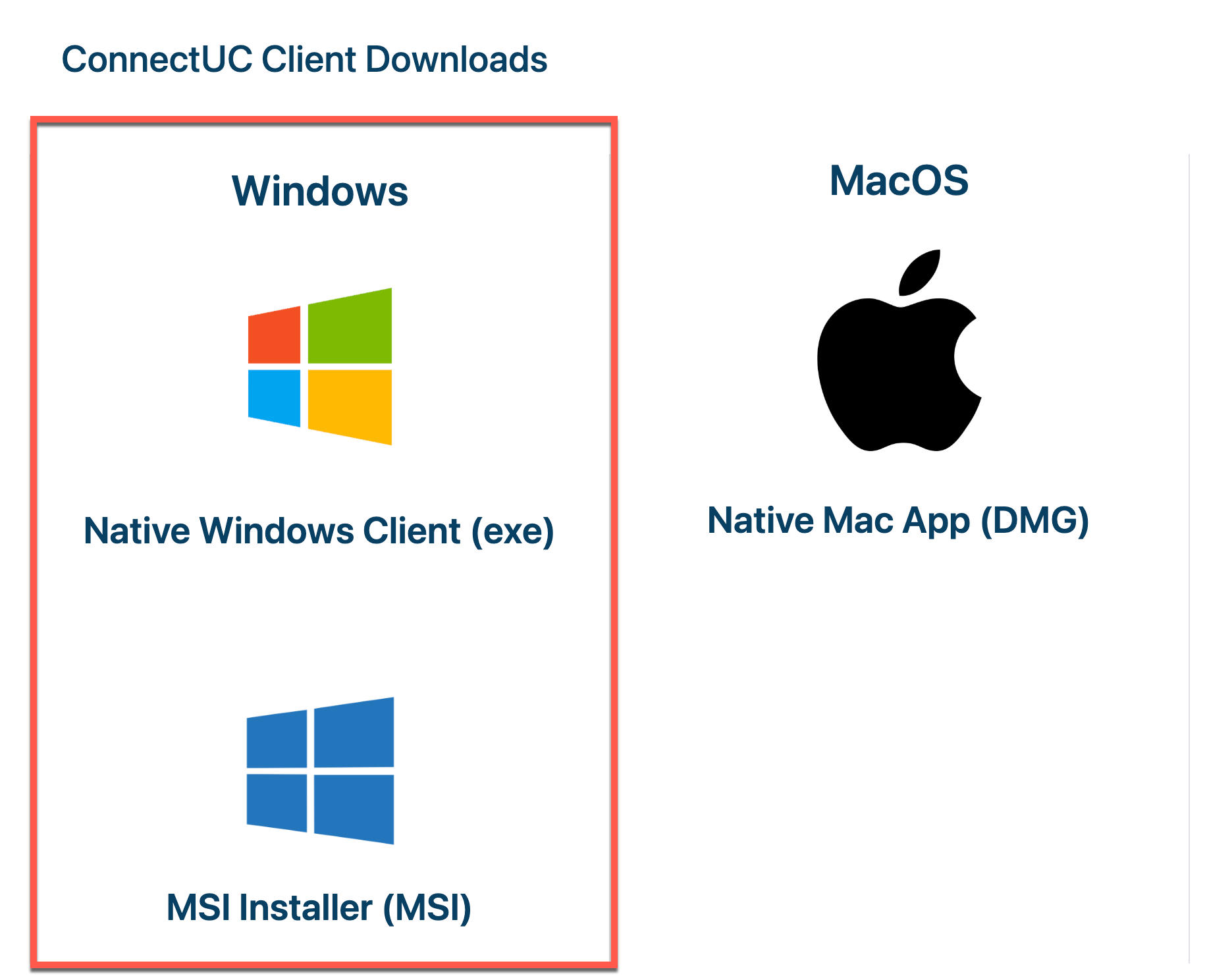
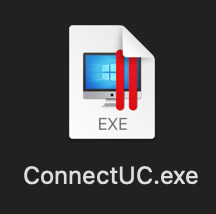
- Once downloaded, double-click the file to begin installation (should be located in your Downloads folder).
- Follow the prompts to complete installation.
Was this article helpful?
That’s Great!
Thank you for your feedback
Sorry! We couldn't be helpful
Thank you for your feedback
Feedback sent
We appreciate your effort and will try to fix the article