POLY ZTP
Logging In
1. First Navigate to the POLY ZTP site:
https://support.polycom.com/PolycomService/home/home.htm
2. Next Login Using the following credentials
Username: lance@sonictel.com
Password: Ztp2022#
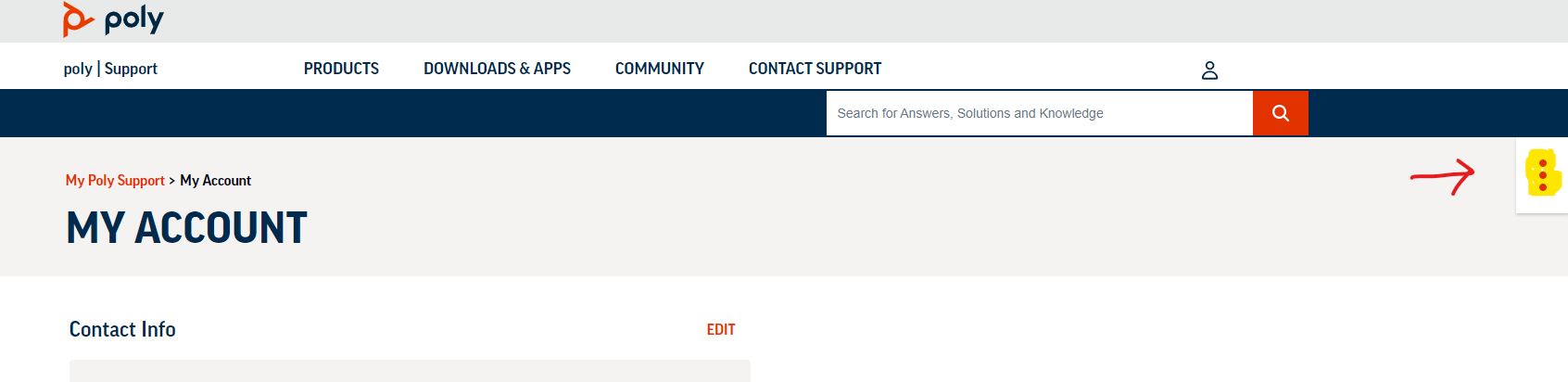
Go to My account by pressing the icon resembling a person

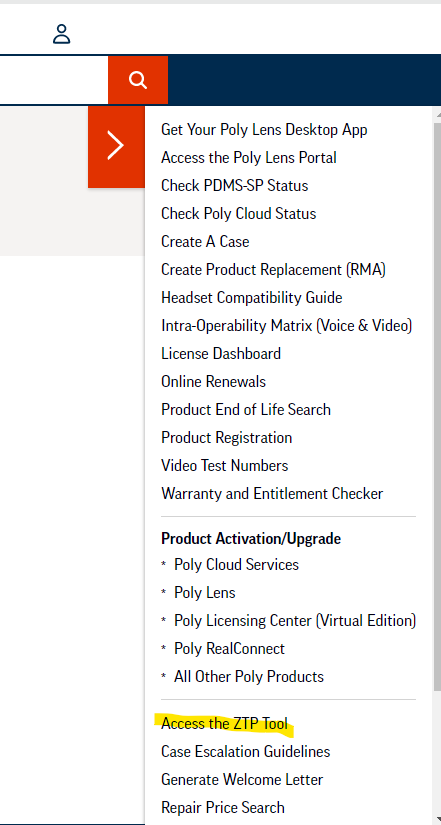
Click on the 3 vertical dots in the top right hand corner to open a menu
And click on "Access ZTP Tool"
Adding a device
Adding Device
(If new company)
1. First, click on "Profile Association"
2. In the box next to "Reference ID:* " enter the company's name (no spaces), and click next
3. Next enter the Mac address with no special characters, and enter "SKYSWITCH" in the "Configuration Profile" Field
4. If you have more devices to add for this company click "Next," otherwise click "Finish"
(If adding to existing company)
1. Click "Find Operations" then click "Search"
2. Click on the Company you want to add to
3. At the top click "Add"
4. Next enter the Mac address with no special characters, and enter "SKYSWITCH" in the "Configuration Profile" Field
5. Click "Done"
If the phone is at a default state it just needs to be plugged in or rebooted.
If not you must factory reset the phone, following the instructions below.
Factory Reset your Polycom VVX phone
- Turn off the device.
- On the “Loading Application” screen press “Cancel.”
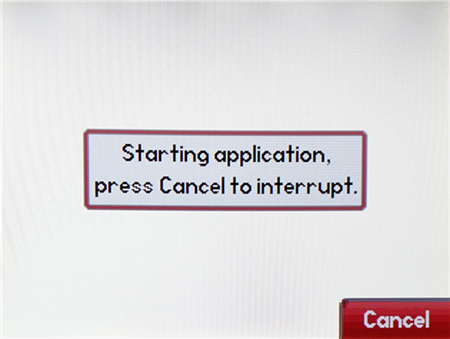
- As soon as the “Welcome” message appears, press and hold down “1,” “3,” “5.”
- Release them only when seeing the “Enter Password” message appear.
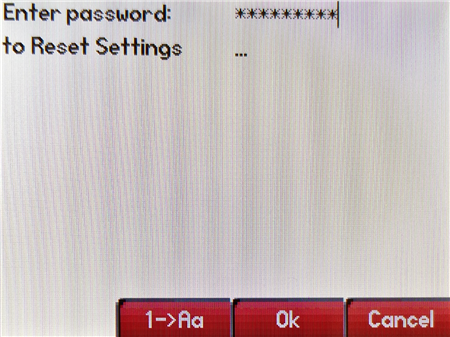
- For password use the phone’s MAC address (using CAPS for letter) and press “OK.”
- After the restart your phone will be successfully reset (with default password “4, 5, 6”)
Was this article helpful?
That’s Great!
Thank you for your feedback
Sorry! We couldn't be helpful
Thank you for your feedback
Feedback sent
We appreciate your effort and will try to fix the article