The following will show you how to register an ALGO Paging Unit on the Sonictel cloud PBX
Provisioning Parameters Doc Attached
When the Algo is on the Sonictel PBX the password is set to 649
To locate the Algo IP on the LAN if you don't have access to the router use Advanced IP Scanner
https://www.advanced-ip-scanner.com/download/Advanced_IP_Scanner_2.5.3850.exe
NOTE: Most ALL Algo Speakers provide for TWO-WAY Paging ( Talk Back )
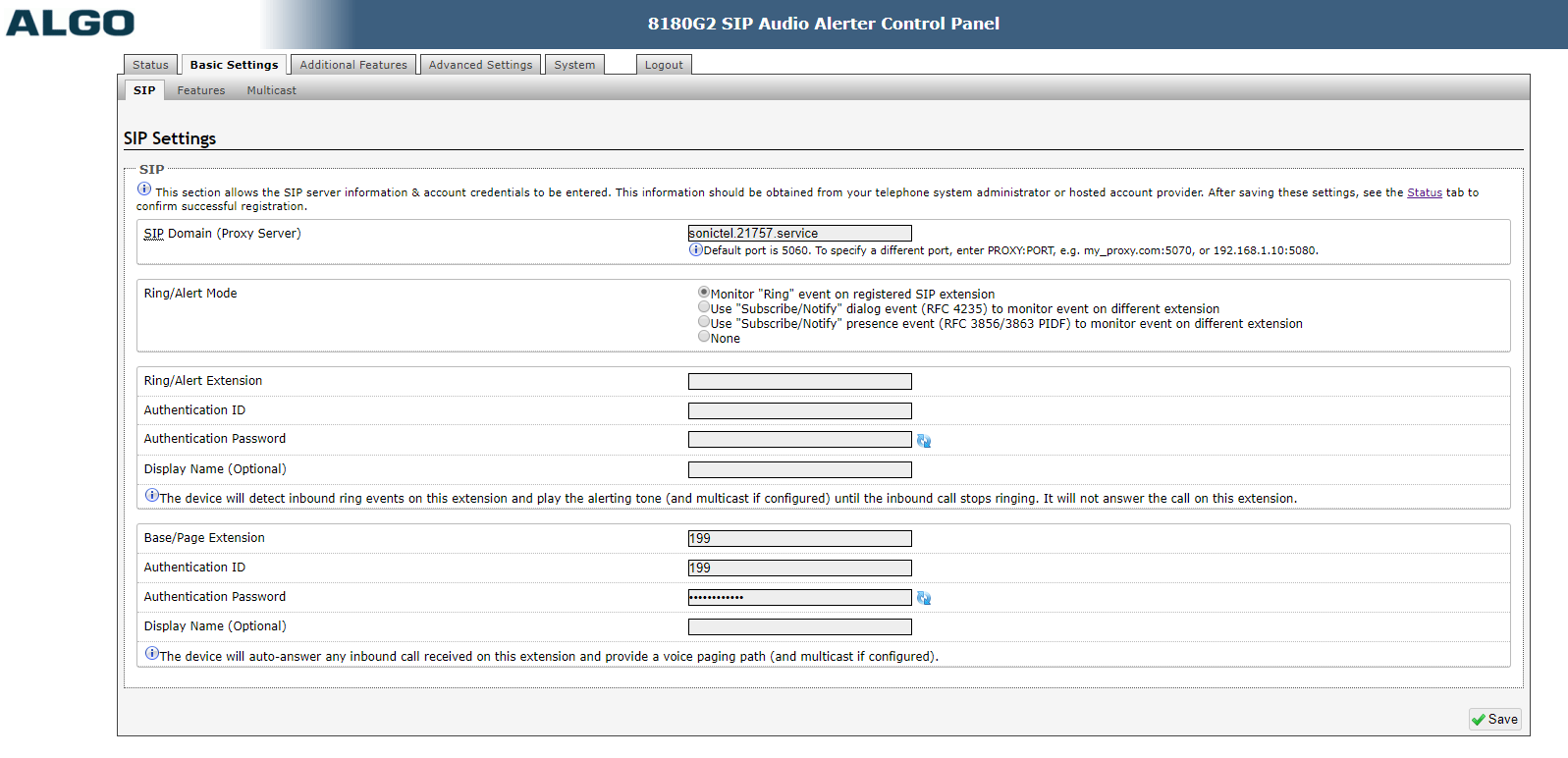
click BASIC Settings TAB > SIP Tab
SIP Domain (Proxy Server) = sonictel.21757.service ( this is where you enter the customer's domain address )
Base/Page = 199 ( this is the extension number of the user )
Authentication ID = 199 ( this is same as Base/Page Extension )
Authentication Password = kjsaljljckL ( This is the SIP Password from the PBX )
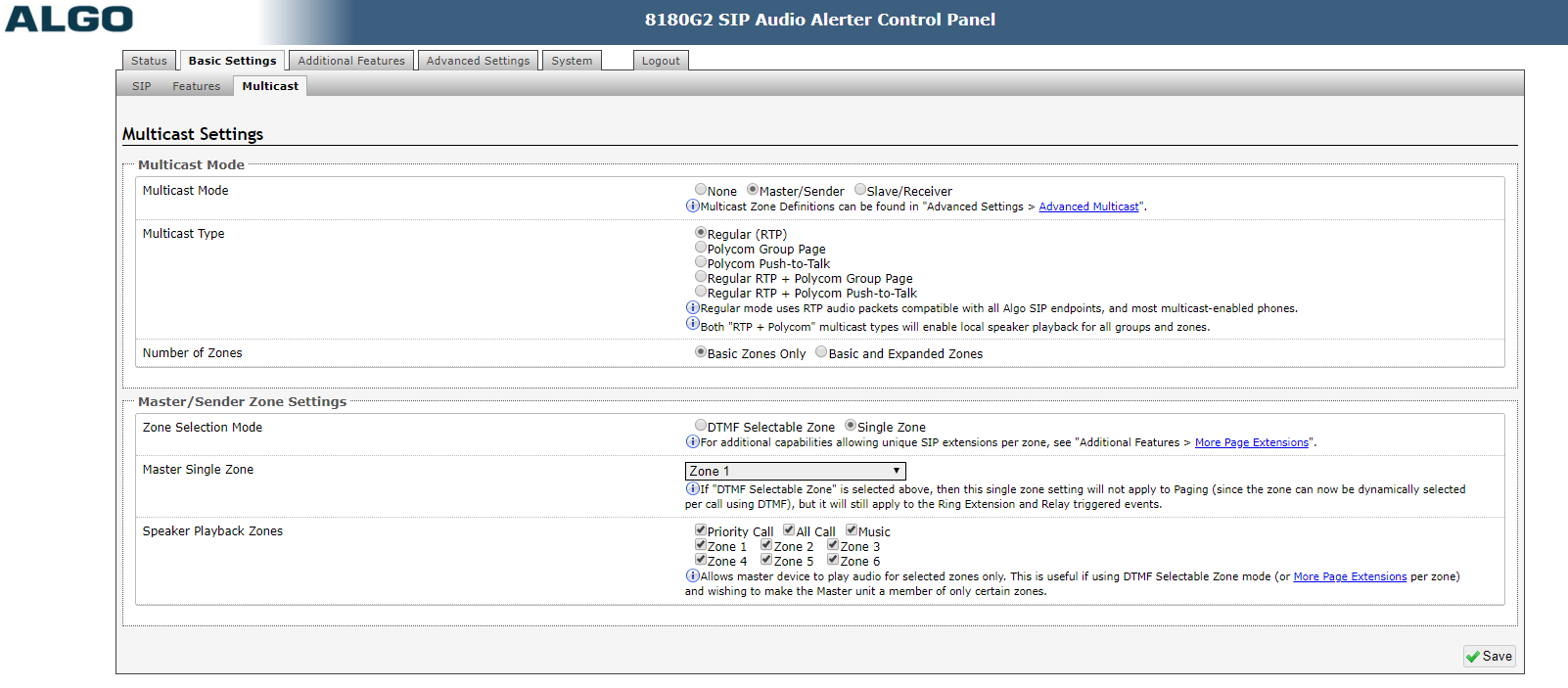
click BASIC Settings TAB > Multicast Tab
Multicast Mode = / select Master/Sender or Slave/Receiver
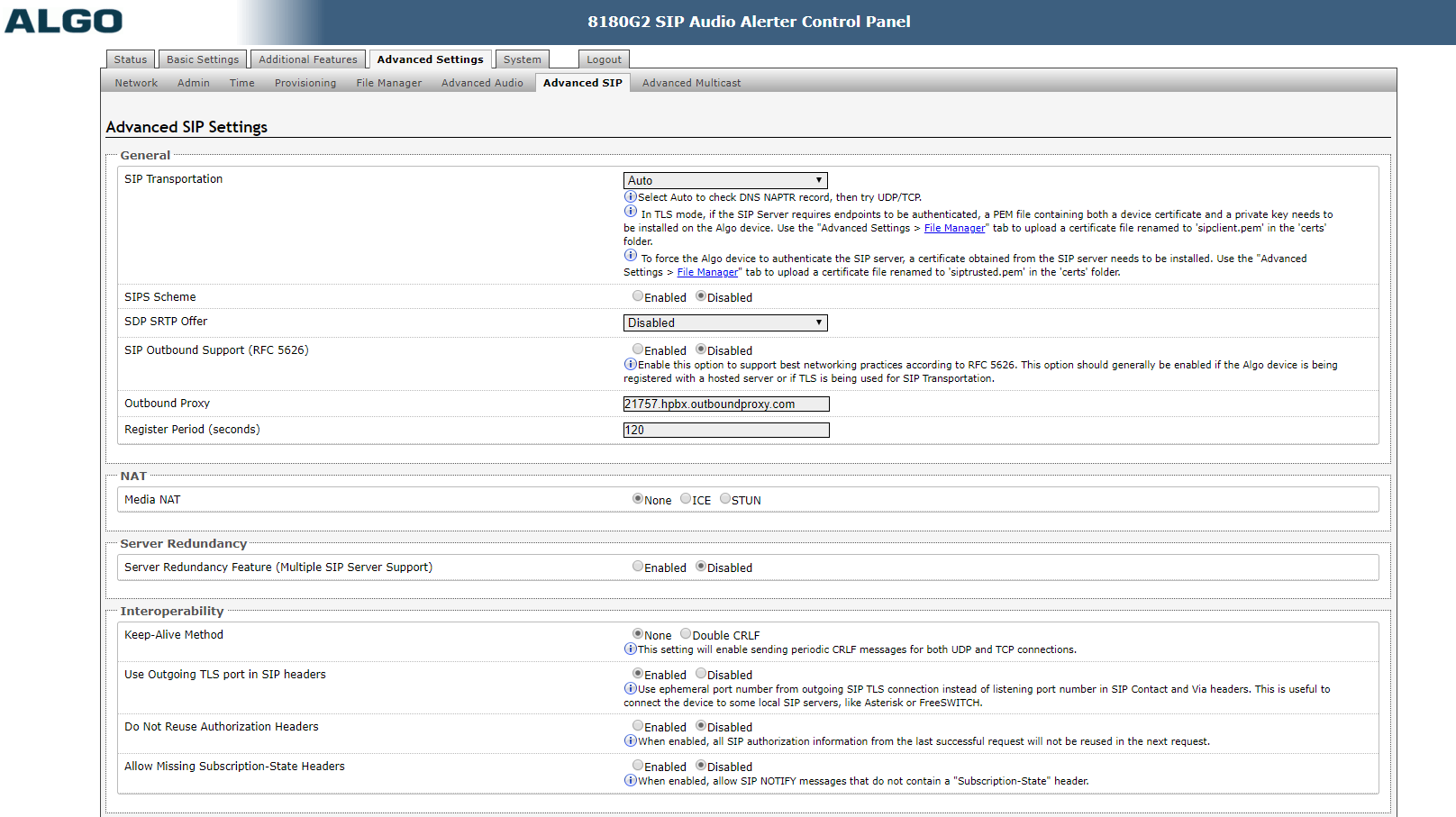
click ADVANCED Settings TAB > ADVANCED SIP Tab
Outbound Proxy = 21757.hpbx.outboundproxy.com ( this is the same for all customers )
Registration Periods ( seconds ) = 120
NOTE: Most ALL Algo Speakers provide for TWO-WAY Paging ( Talk Back )
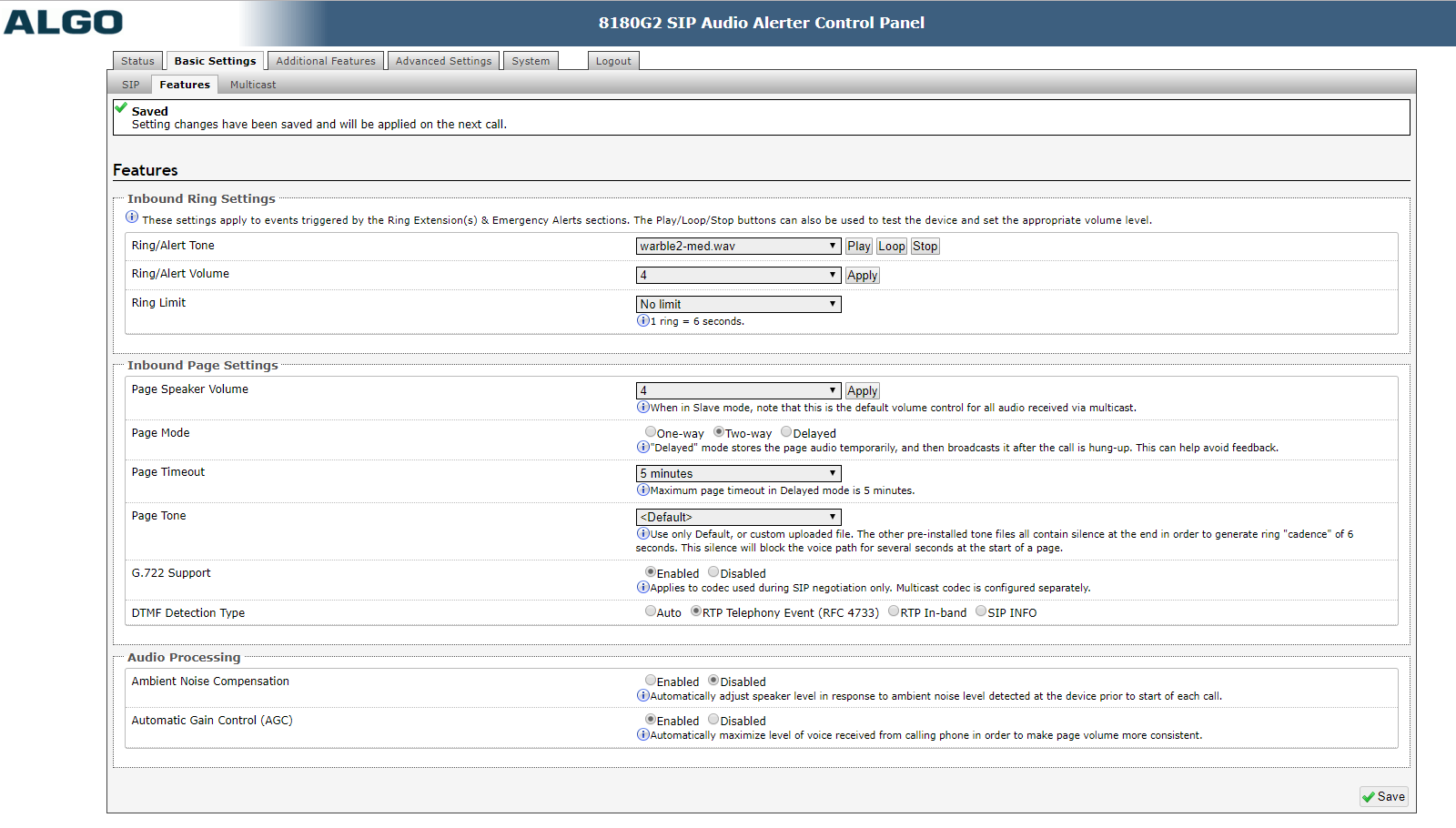
click BASIC Settings TAB > FEATURES SIP Tab
Inbound Page Settings
Page Mode = One-Way, Two-Way, Delayed
Select Two-Way if desired
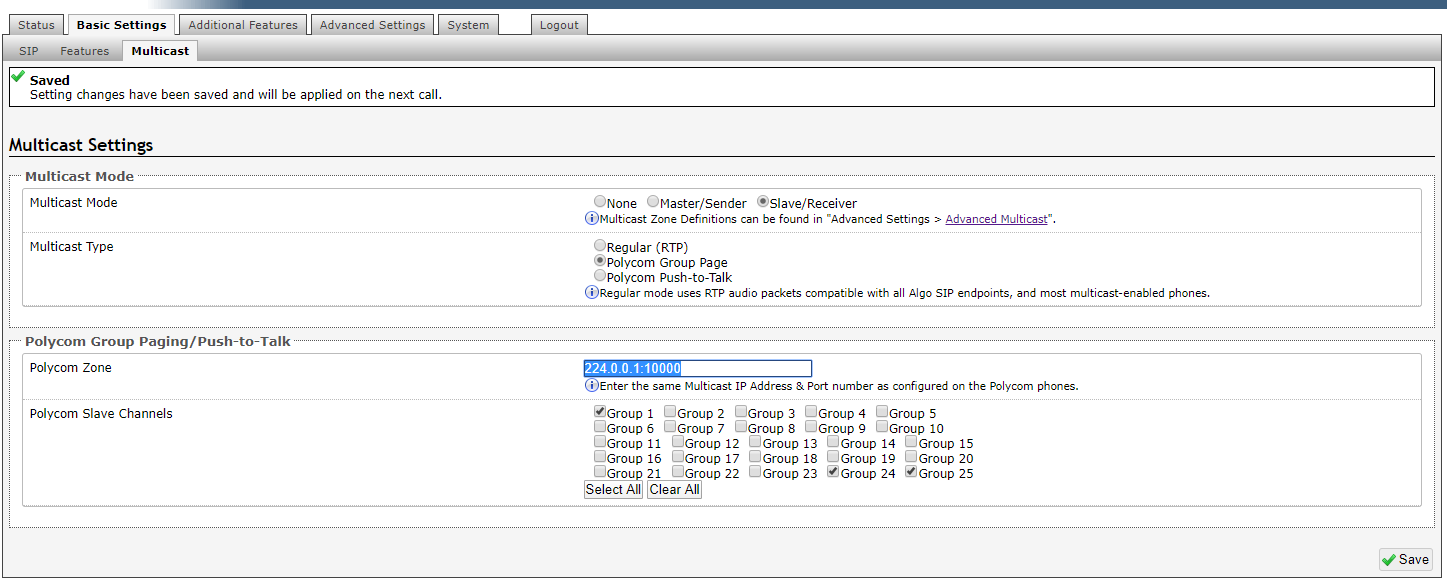
click BASIC Settings TAB > MULTICAST Tab
BY DEFAULT THE ALGO WILL USE CHANNEL 0, BUT the Polycom and Yealinks are working on Channel 1 by default.
The easiest way is to change the Algo to conform to the existing Yealink & Polycom channel 1 by programming the following:
Click Slave / Receiver
Click Polycom Page Group
Enter Polycom Zone = 224.0.0.1:10000
Make Sure Group 1 is checked (Group-1 = Channel-1, Group-2 = Channel-2, etc.) The Polycom & Yealink phones will use Group-1 or Channel-1 as default. So this must be changed for the Algo is hear the page.
Was this article helpful?
That’s Great!
Thank you for your feedback
Sorry! We couldn't be helpful
Thank you for your feedback
Feedback sent
We appreciate your effort and will try to fix the article