See the steps below to create a 'Custom Caller ID Request' in the Mfax (Documo) portal. This allows the customer to send a fax via the MFax portal using their actual fax number without the need to port that number to MFax.
Note: If you need this done quickly, you can submit the request as below and call their support line [(888) 890-2325] and provide the CIR Number (Caller ID Request) and the Mfax support team will expedite the request.
- Log into the Sonicfax portal: https://app.sonicfax.com/
- In the upper left hand corner, click the 'Fax' icon
- On the toolbar on the left hand side, select 'Caller IDs'
- IMPORTANT: In the upper right hand corner type the customer name and search for the subaccount. You must be within the subaccount of the customer BEFORE creating the Caller ID Request.
- On the right hand side of the page click the 'Create Request' button
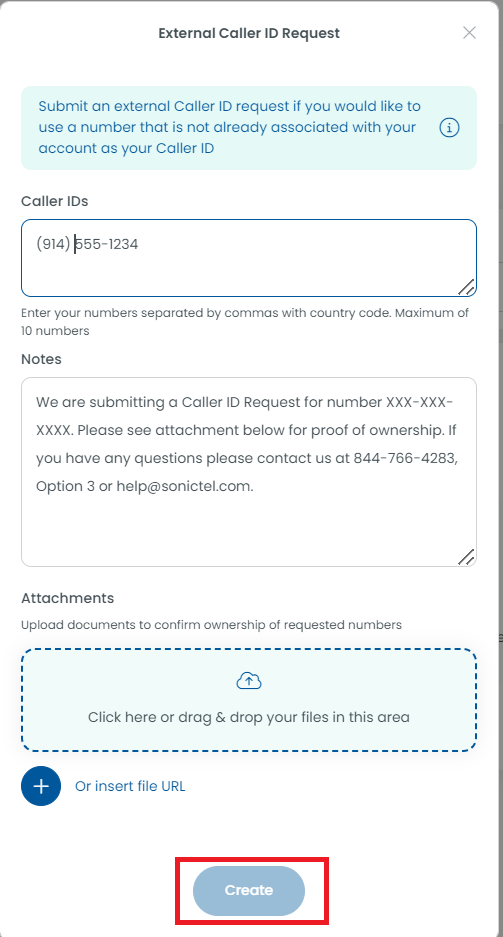
- A pop-up box will appear. Enter the following information
- In the 'Caller IDs' section: Enter the number you would like to request as a custom Caller ID
- In the 'Notes' section: Enter "We are submitting a Caller ID Request for number XXX-XXX-XXXX. Please see attachment below for proof of ownership. If you have any questions please contact us at 844-766-4283, Option 3 or email help@sonictel.com."
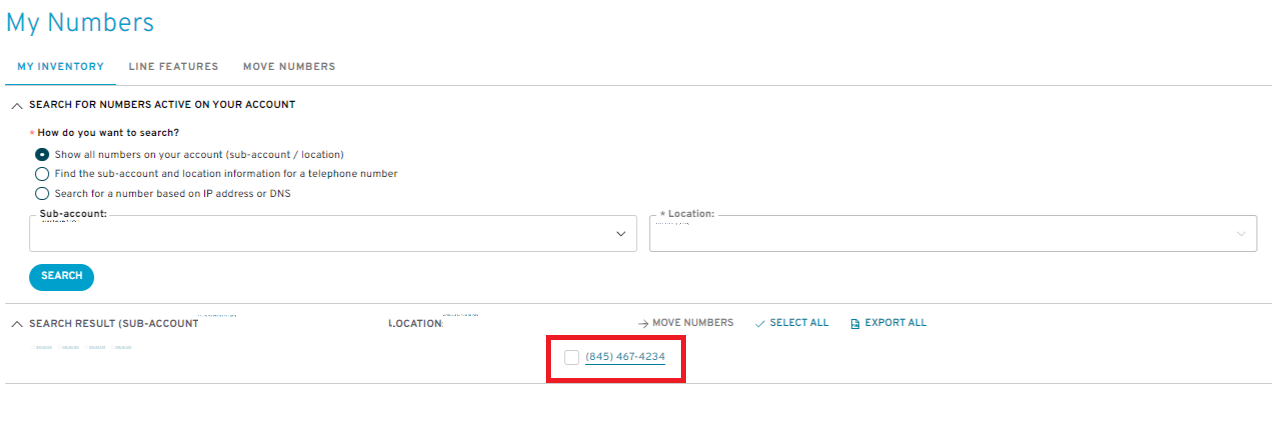
- In the 'Attachments' section: Upload a screengrab of the 'My Numbers' section from the customer's Bandwidth account. Alternatively you may also upload a CSR for the customer (ex. number does not reside on Bandwidth). If the customer has more than 10 numbers, highlight or mark the number in the image for clarification.
- Click the 'Create' button at the bottom of the pop-up box
MY NUMBERS SECTION IN BANDWIDTH EXAMPLE 1:
EXTERNAL CALLER ID REQUEST POP-UP IN MFAX PORTAL EXAMPLE 1:
Was this article helpful?
That’s Great!
Thank you for your feedback
Sorry! We couldn't be helpful
Thank you for your feedback
Feedback sent
We appreciate your effort and will try to fix the article