[1] This process works for supported phones excluding:
Cisco 7940/7960 [not supported]
Yealink and Grandstream [must set up 2nd account as BYOD] : see this link.
Panasonic [must set up 2nd account as BYOD] ; see this link
Adding Two Extensions on One Phone
You can put two different extensions on one phone/endpoint. [1]
This is useful for example if you run two businesses and wish to have different phone numbers ring on different lines, and to present different caller IDs when calling out.
To add a second extension 201 to an existing endpoint 101:
Create the new extension 201 and in the endpoints tab drop down select the existing endpoint 101.
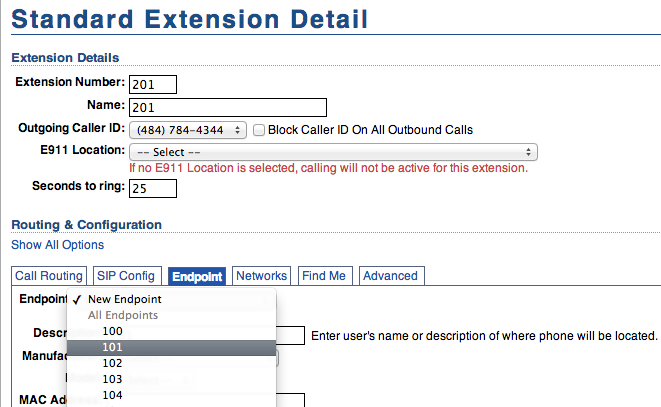
You will get a popup asking to reset the endpoint or add the new extension to endpoint.
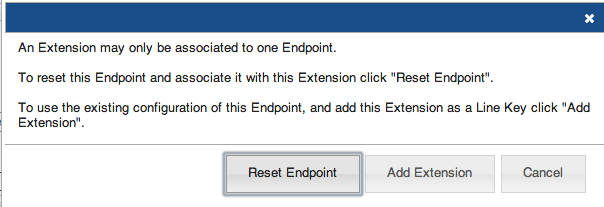
Choose Add the new extension to endpoint.
Both line appearances will now be on the phone.
In the Line keys for extension 101 (endpoint tab) you can put multiple line keys for each extension, depending on how many line appearances are on your model of phone.
The system requires them to be in order starting with the original extension, such as
101
101
201
201
and they have to have the same label or system will ignore the 2nd label.
________________________________________
An alternate way to do this is:
Create the second extension 201 with a dummy BYOD endpoint.
Delete the BYOD endpoint.
In the endpoint for 101, add another line key and select x201.
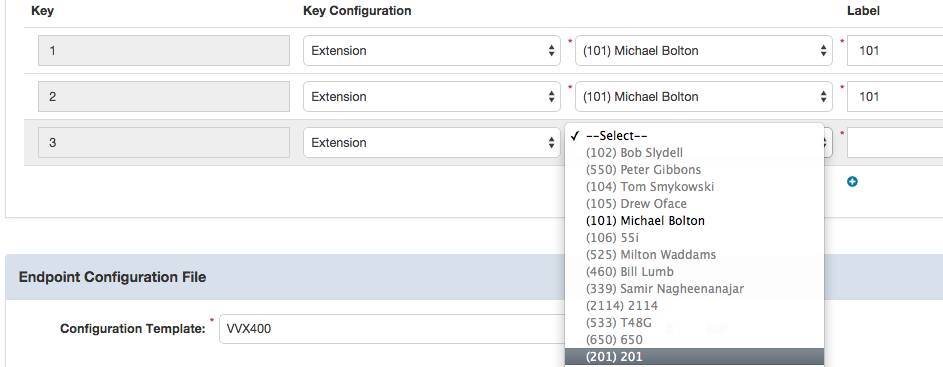
Any extensions that have no endpoint will be visible in the line key drop down for any existing endpoint.
------------------------------------------------------------------------------------------------------------------------------------------------
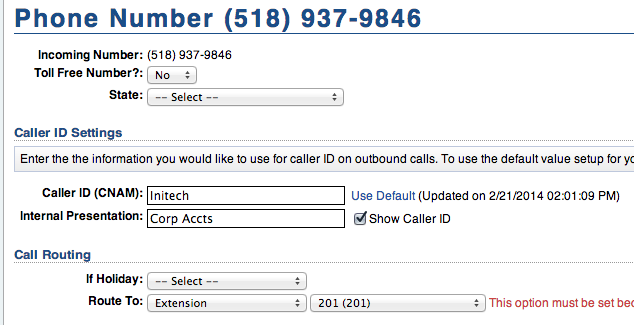
To identify incoming calls by the phone number they ring in on you can use the Internal Presentation feature on the phone number detail page.
[1] This process works for supported phones excluding:
Cisco 7940/7960 [not supported]
Yealink and Grandstream [must set up 2nd account as BYOD] : see this link.
Panasonic [must set up 2nd account as BYOD] ; see this link
Was this article helpful?
That’s Great!
Thank you for your feedback
Sorry! We couldn't be helpful
Thank you for your feedback
Feedback sent
We appreciate your effort and will try to fix the article