as it pertains to Panasonic TVA Voice Mails
Announcement from Google - email security setting changes
General information:
To help keep your Gmail account secure, starting May 30, 2022, Google will no longer support the use of third-party apps or devices which ask you to sign in to your Google Account using only your username and password.
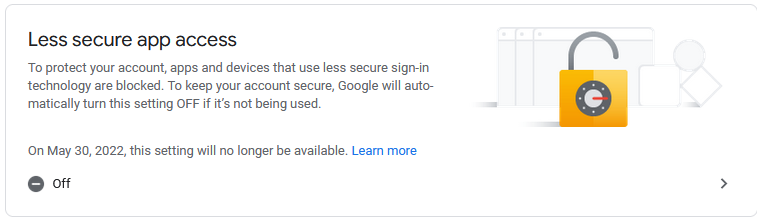
If the app doesn’t offer “Sign in with Google,” you can either:
- Use App Passwords
- Switch to a more secure app or device
Create & use App Passwords
If you use 2-Step-Verification and get a "password incorrect" error when you sign in, you can try to use an App Password.
- Go to your Google Account.
- Select Security.
- Under "Signing in to Google," select App Passwords. You may need to sign in. If you don’t have this option, it might be because:
- 2-Step Verification is not set up for your account.
- 2-Step Verification is only set up for security keys.
- Your account is through work, school, or other organization.
- You turned on Advanced Protection.
- At the bottom, choose Select app and choose the app you using
 Select device and choose the device you’re using
  Generate.
 - Follow the instructions to enter the App Password. The App Password is the 16-character code in the yellow bar on your device.
- Tap Done.
Tip: Most of the time, you’ll only have to enter an App Password once per app or device, so don’t worry about memorizing it.
Why you may need an App Password
Tip: Don’t create an App Password unless the app or device you want to connect to your account doesn’t have “Sign in with Google.”
When you use 2-Step Verification, some less secure apps or devices may be blocked from accessing your Google Account. App Passwords are a way to let the blocked app or device access your Google Account.
Step by Step instructions:
In your Gmail account settings, go to Security and make 2 changes - disable Less Secure App Access and turn on 2-step verification (you will have to enter a phone number to complete/confirm this step) - then a new option be available under Security to set App Passwords. Click the right arrow (>) on the 2-Step Verification line, then scroll to the bottom of the next page:
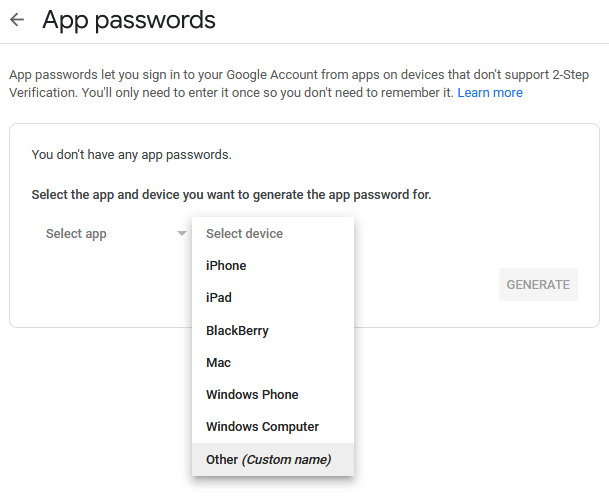
Select Device - Other, type in a name like TVA50 VM to Email
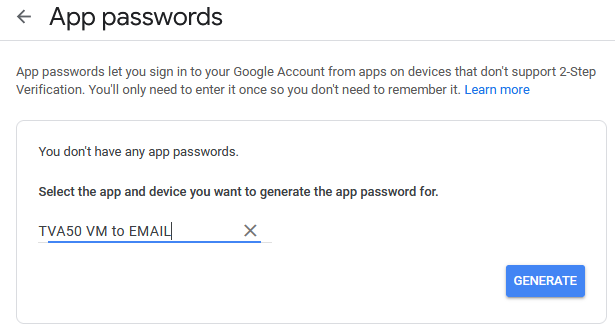
Then click the Generate button
The result looks like this (your password will be different than the one shown here):
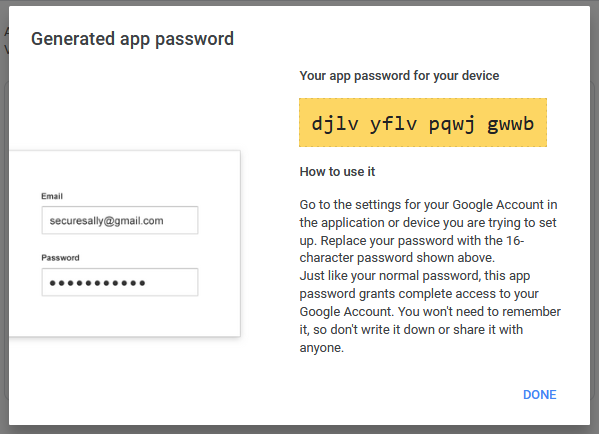
Enter this 16-character password (no spaces) in the SMTP Authentication password field in the TVA/UM. Note: once you click DONE, you will no longer be able to view or retrieve this App Password.
You can also generate additional passwords if desired, for other devices to access this same gmail account.
If you also use UM to email in the NS systems, you can use this same password - or you can generate an additional one.
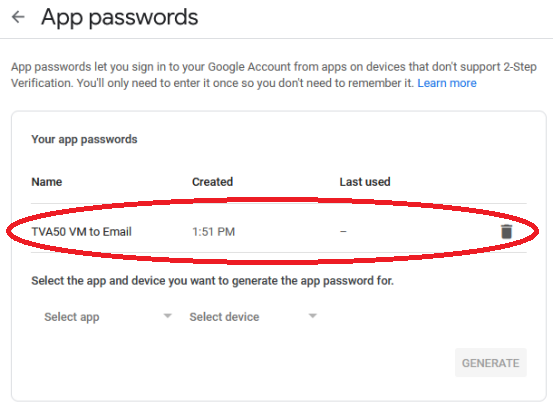
And you have a record of the changes you made:
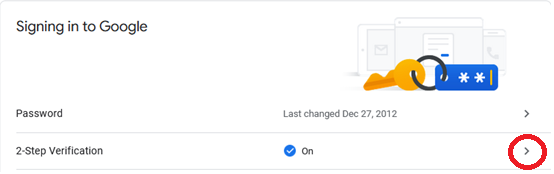
Click the Right-arrow (circled in red above) to see add/view your App Password.
Reminder: When using gmail, Pop server settings are not used, and should be left disabled.
NOTE: Once the above changes are made in the gmail account, and the 16-character App Password is entered in the TVA (or UM) as the authentication password, it is also recommended to make sure TLS is being used.
The UM is already set to use TLS, it cannot use anything else. To use TLS in the TVA, first verify (go to Utility – Software Version) that the Main Software is version 3.15.
Note - If the TVA main software version is anything lower than 3.15, you will have to either upgrade (recommended) or use SSL. For SSL, set the SMTP Server port to 465 and enable SMTP over SSL in System Parameters-Parameters. Skip the rest of the notes below.
For the UM and TVA (if TVA main software is 3.15), set the SMTP Server Port to 587. In the TVA, then go to Utility-Commands and enter the following instructions:
Type OPTN 17,1 [Enter] – the TVA will respond with OK
Type OPTN 18,255 [Enter] - the TVA will respond with OK
Type OPTN 19,2 [Enter] - the TVA will respond with OK
Type OPTN 20,255 - the TVA will respond with OK
Restart the TVA after making these changes. When it comes back up, run a real-time trace and leave a test voicemail message. Confirm that the result is E-mail Transfer Completed.
Was this article helpful?
That’s Great!
Thank you for your feedback
Sorry! We couldn't be helpful
Thank you for your feedback
Feedback sent
We appreciate your effort and will try to fix the article