The Grandstream GXW-4000 series, and Grandstream HT81X series ATA's use a different code structure than other Grandstream devices; they must be provisioned as 'Gateways' in NDP. This article explains how to provision these devices
Note: Some HT8XX series SIP ATAs have a new hardware version that uses different overrides, and due to the different hardware, automatic provisioning is not supported.
- If you are provisioning an HT8XX with Hardware V2 (this is indicated in the device sticker), the UI Password must be at least 4 Characters. Please use an override P2=“XXXX” where XXXX is your 4-character password.
- If you need assistance manually provisioning these devices, please open a Support ticket for alternative provisioning methods.
Note: These instructions are not applicable for HT-813 models as they are a unique hybrid and work differently.
To provision an HT-813 model, please instead configure them in the PBX as a regular two-line endpoint, just like normal phones and HT80X devices. Please also note that Line 2 is an FXO port, and if you intend to use as a paging device that requires an FXO port, please be sure to provision line 2.
Note: The MAC address used in these provisioning instructions refers to the LAN MAC.
- In the PBX Portal, add a phone to a user (via the 'Add Phone' button) and leave the 'Model' drop-down on the default 'Select a Phone Model' option before adding. This blank phone extension is being created so that it will be available to assign in NDP during the later steps.
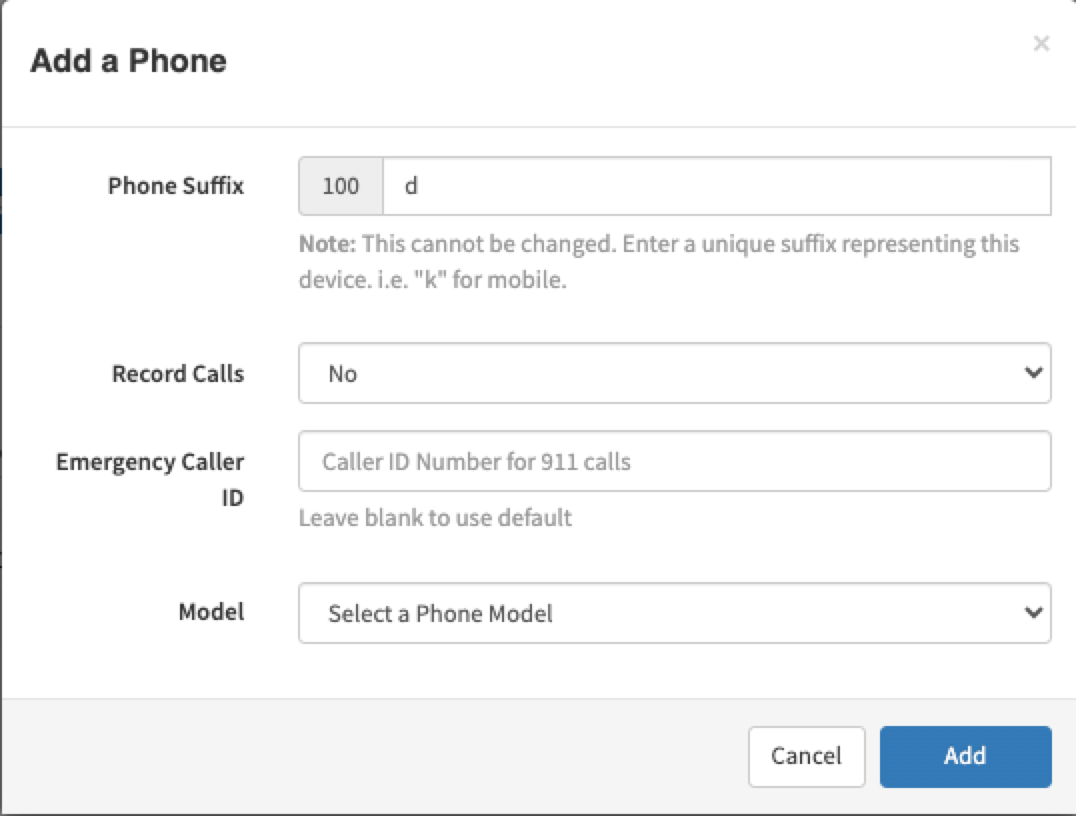
Please note the 'm' suffix (mobile) is reserved for ReachUC and UC Client. Please see our Reserved Extension Suffixes article for more information.
- In your reseller Dashboard navigate to Manage NDP. Inside of NDP select configuration > Gateways.
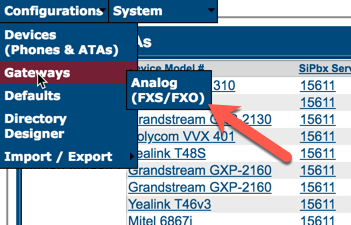
- Click on Add Configuration and populate the required fields.
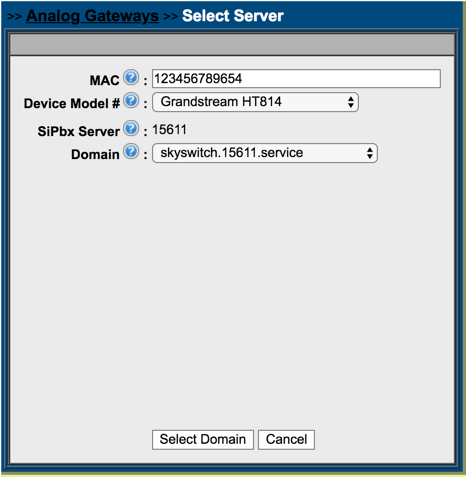
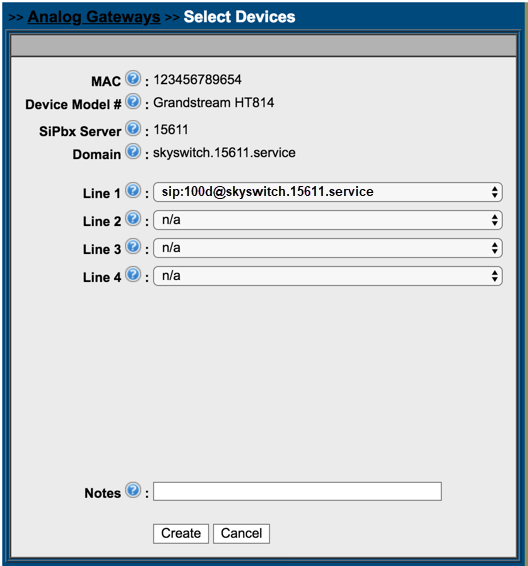
Note that the MAC address being entered should have no colons ":". So a MAC address shown as "12:34:56:78:90:ab" should be entered as 1234567890ab.
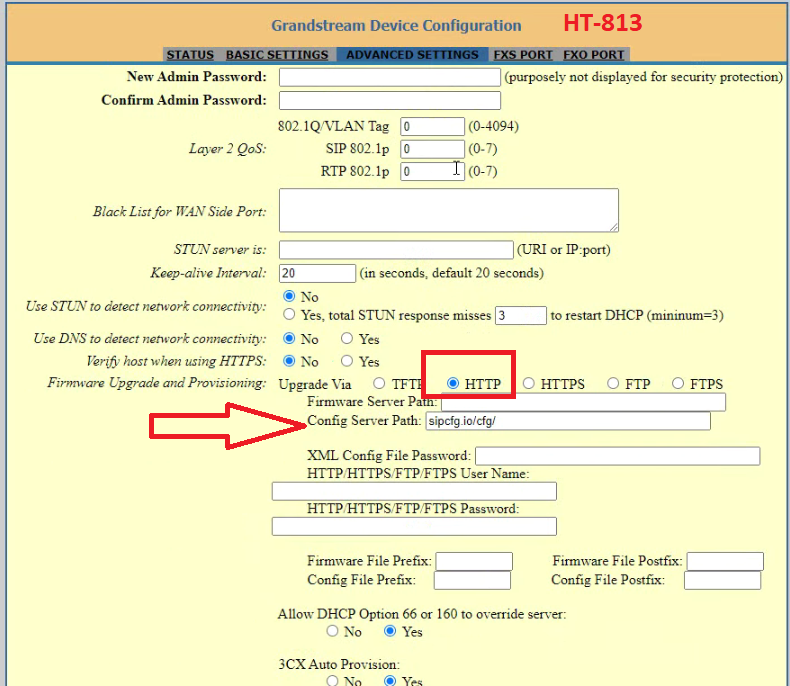
- Navigate to the Grandstream HT's GUI and select Advanced.
- Set the Firmware Upgrade and Provisioning setting to HTTP
- Set the Config Server Path to sipcfg.io/cfg/
 Save the settings and restart/reprovision the device. After the device is done reprovisioning it should have pulled the user information assigned to the device in NDP and be registered with the SkySwitch platform.