NOTE: All users of NetDrive share the same Google Drive API client ID for accessing their files. If your connection suffers from slow download and/or upload please register your own client ID.
1. Open https://console.developers.google.com 298 in your browser and log in to your google account.
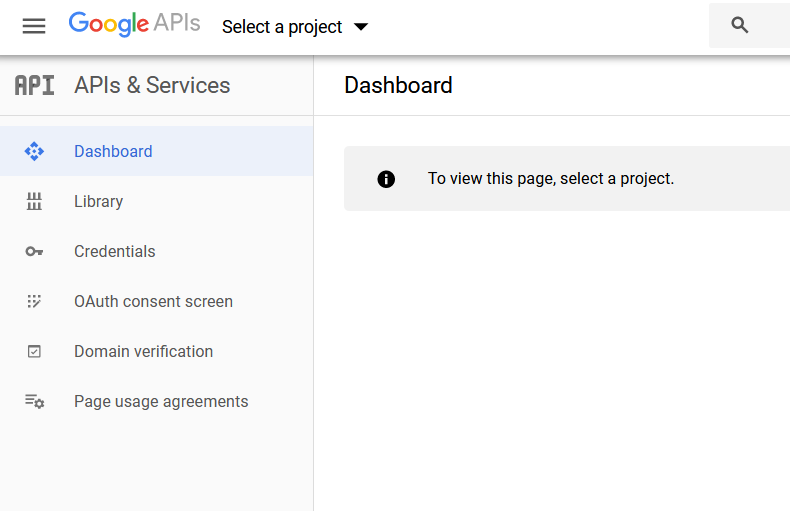
2. Click 'Select a project’
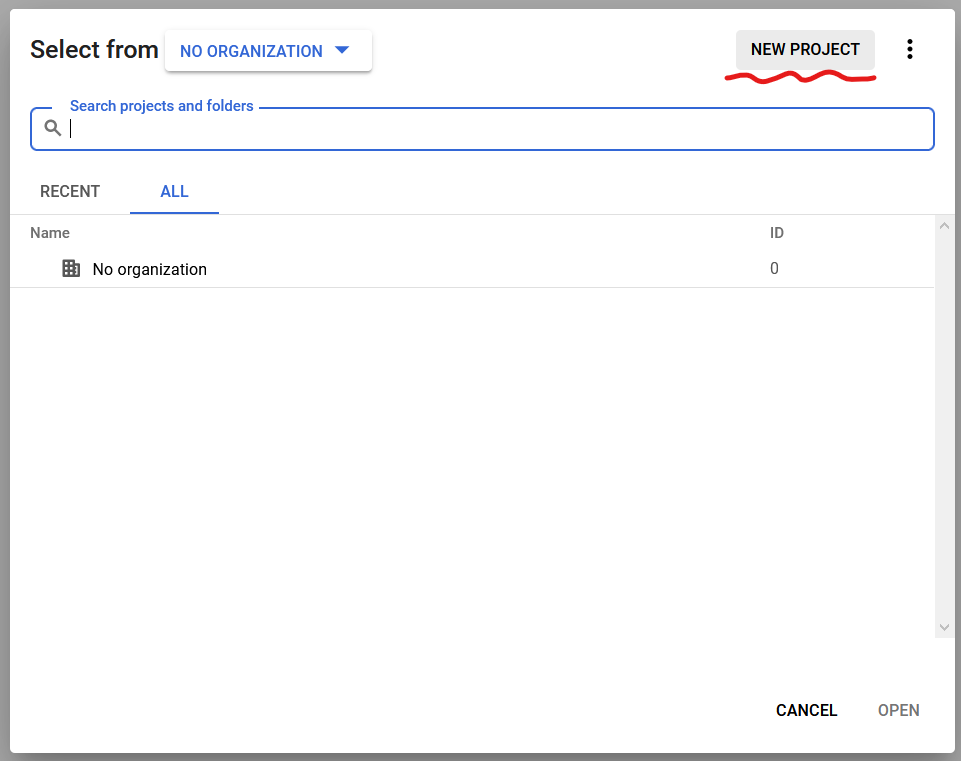
3. Click 'NEW PROJECT’
If you have a project already, you can use it.
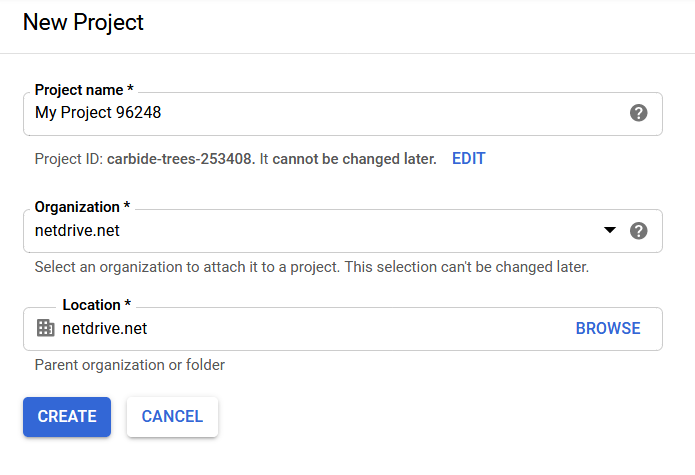
4. Input project name, Organization and Location then create it.
You need to set your own Organization and Location.
5. Create project may take some time. Wait and choose ‘Select a project’ again then open project that you’ve created.
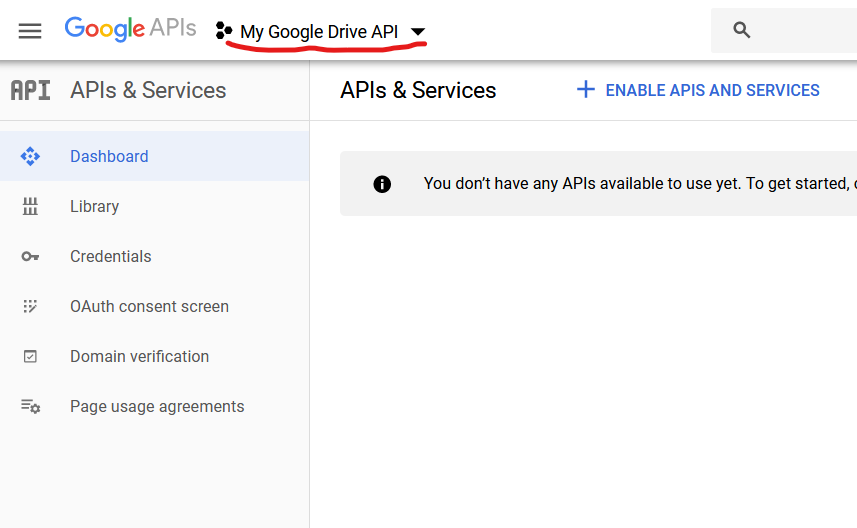
6. Click 'ENABLE APIS AND SERVICES’
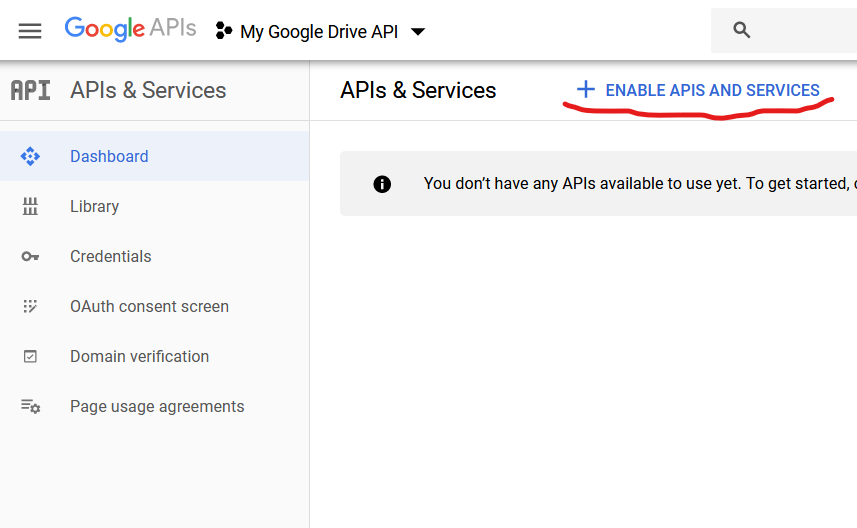
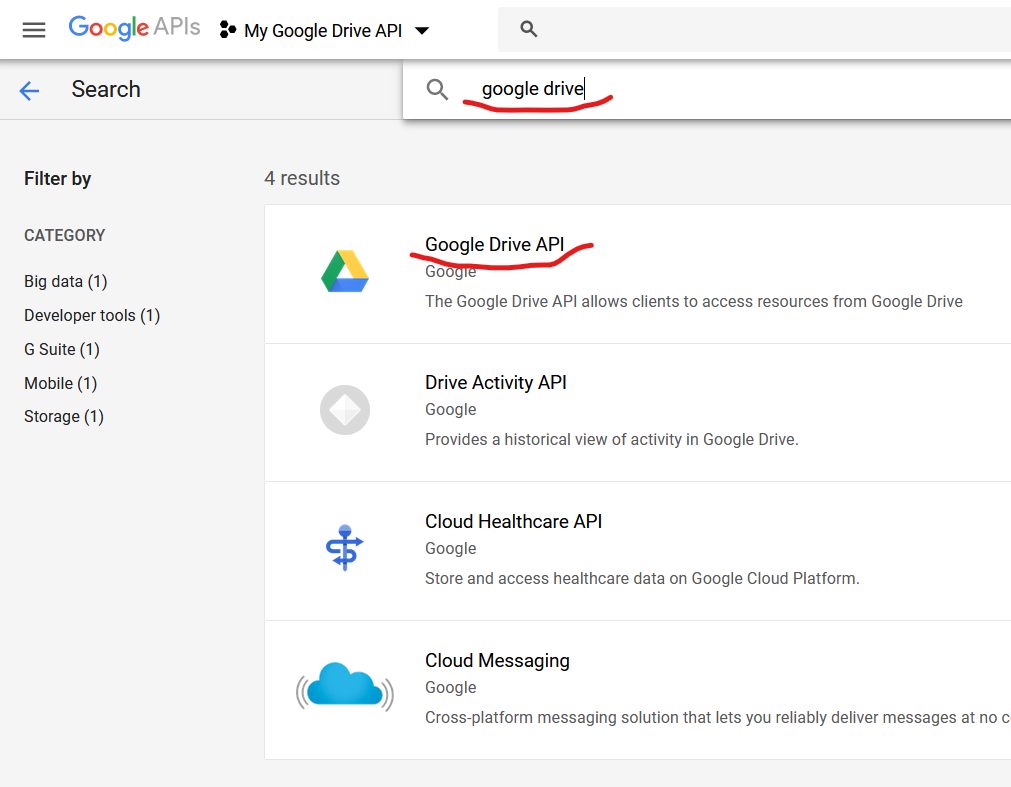
7. Search for ‘google drive api’ and click 'Google Drive API’
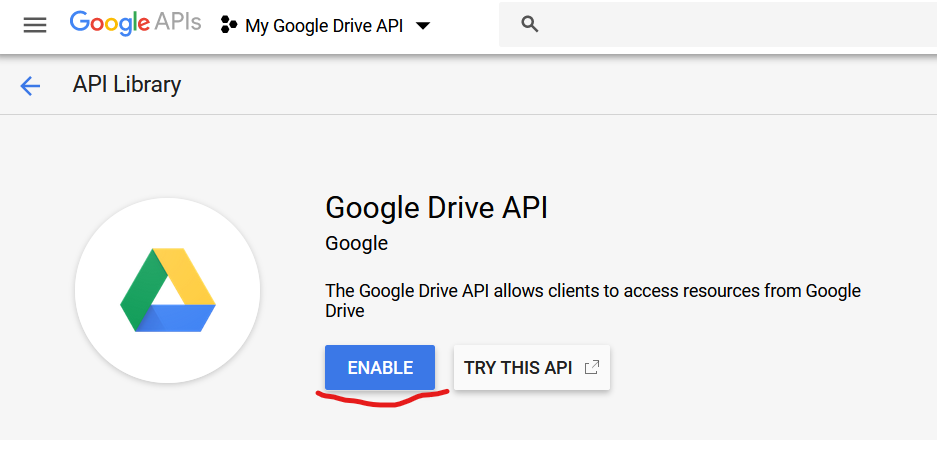
8. Enable it
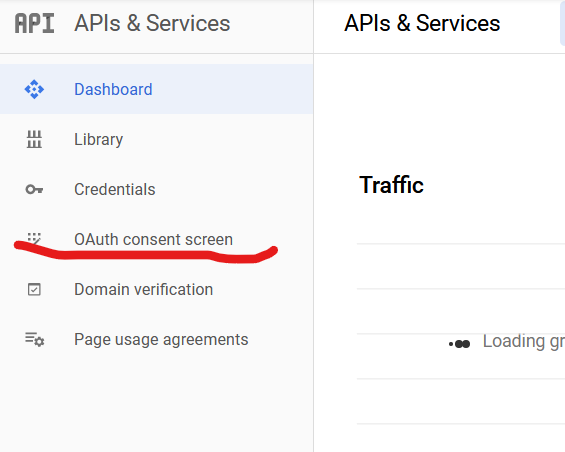
9. Click API name to get back to dashboard

10. Click 'OAuth consent screen’
Select Internal as User Type:
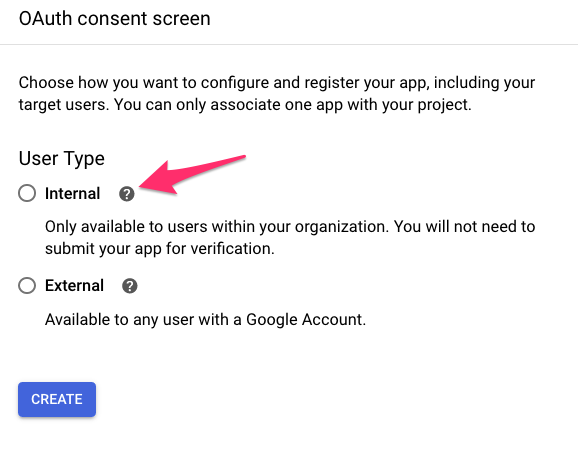
11. Set your application name, application logo and support email

12. Click Add scope button
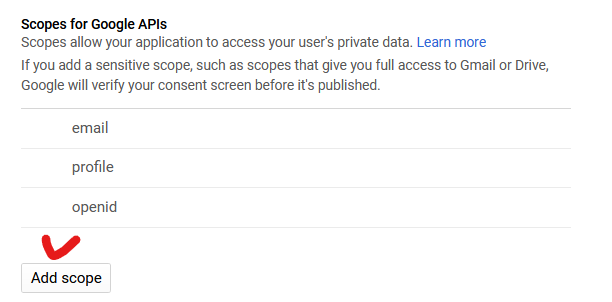
13. Select 'Google Drive API …/auth/drive and click ‘ADD’ button

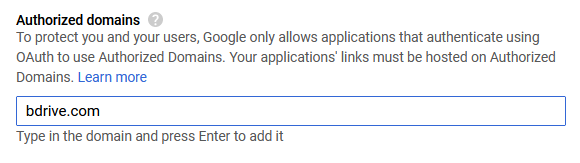
14. Enter ‘bdrive.com 38’ for Authorized domains
We need this for OAuth to work in NetDrive or CloudSync.
Don’t forget to press enter!
15. Enter additional links and click ‘Save’ button
If you want to use this API key for CloudSync change domains to https://cloudsync.bdrive.com/ 13.
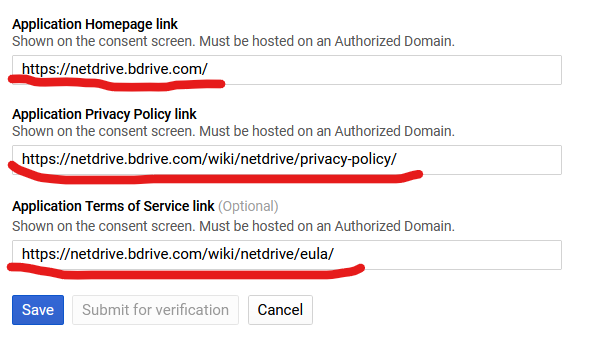
For copy and paste:
- https://netdrive.bdrive.com 13
- https://netdrive.bdrive.com/wiki/netdrive/privacy-policy 2
- https://netdrive.bdrive.com/wiki/nertdrive/eula 2
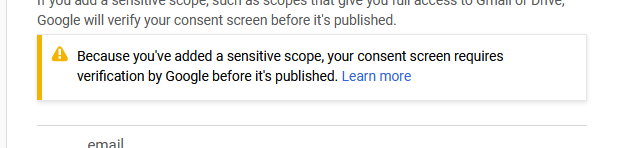
Ignore warnings like below because this API key is for you only.
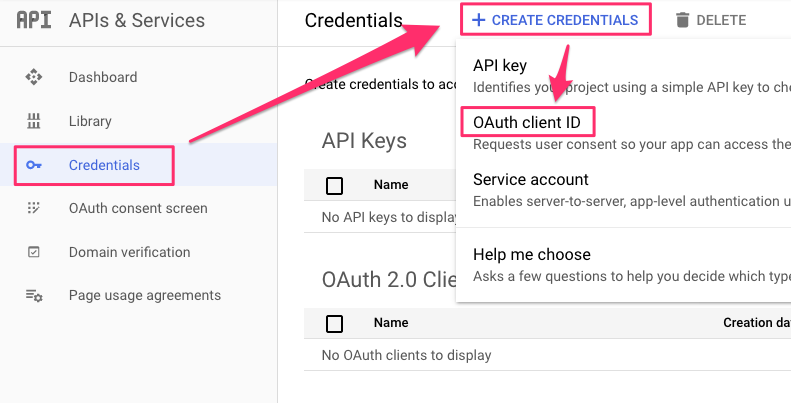
16. Click 'Credentials’
Select 'Create credentials’
Select 'OAuth client ID’
Credentials_–APIs___Services–My_Project_48459–_Google_API_Console791×403 49.9 KB
17. Choose ‘Web application’ and name it.
Add ‘https://accounts.bdrive.com/oauth/ 50’ to ‘Authorized redirect URIs’. Don’t forget to press Enter key.
Click ‘Create’ button
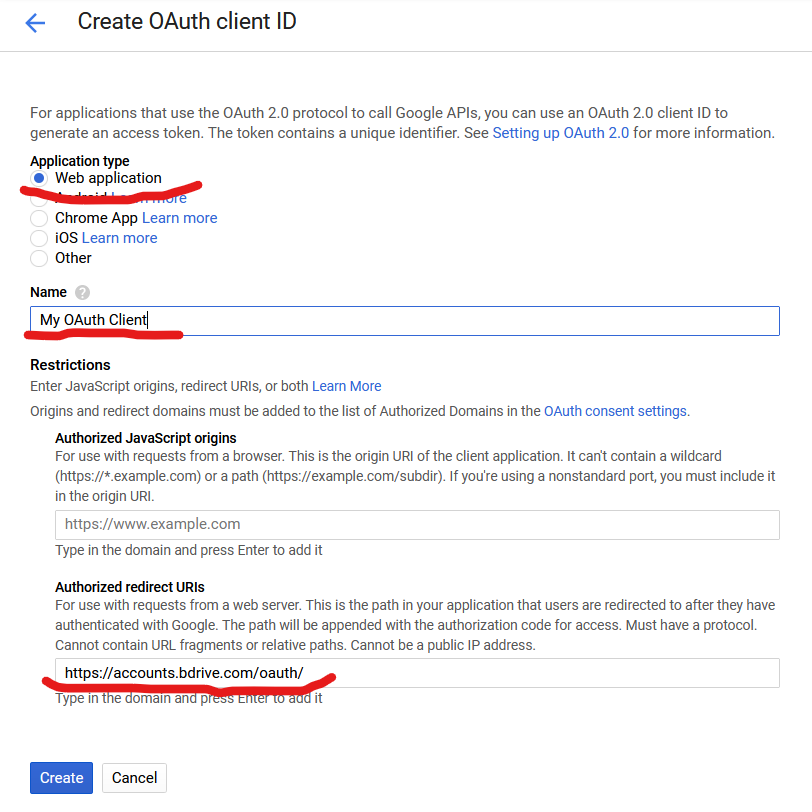
You need to press enter after input https://accounts.bdrive.com/oauth/ 50.
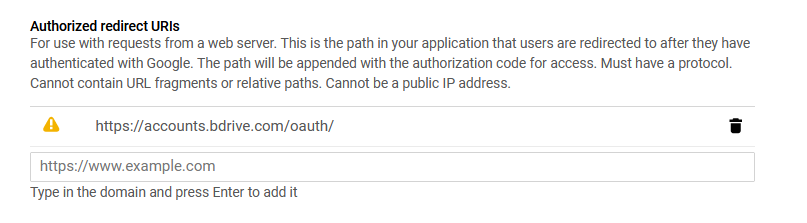
If the redirect uri is successfully added your screen will show the uri like this:
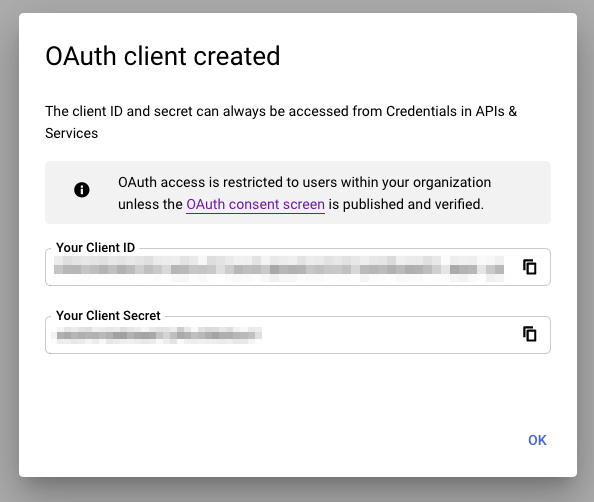
18. Your OAuth client ID and client secret will be displayed
We need this later. Save your client ID and client secret to a text file
Credentials_–APIs___Services–My_Project_48459–_Google_API_Console594×502 25.8 KB
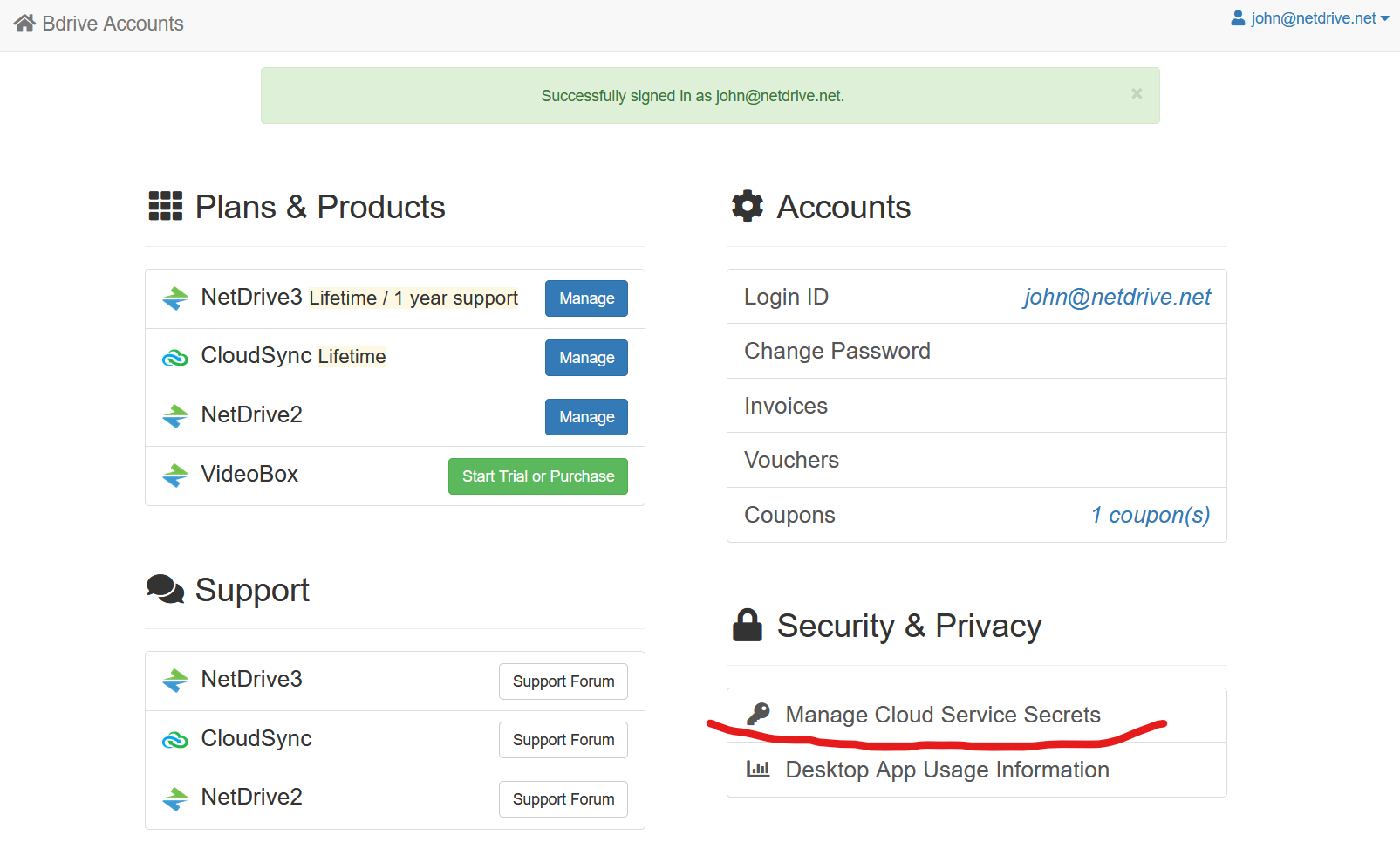
19. Open https://accounts.bdrive.com 118 in your browser and log in.
Click 'Manage Cloud Service Secrets
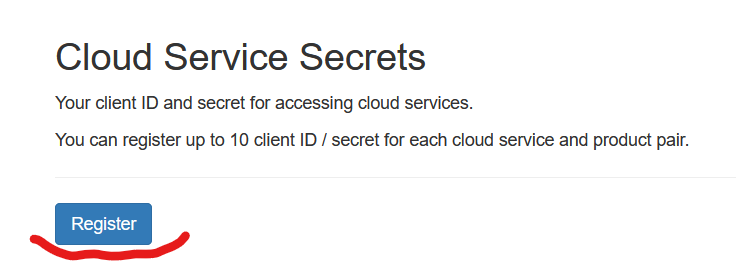
20. Click 'Register’
21. Choose ‘Google Drive’ in type and input client id and secret from step 18.
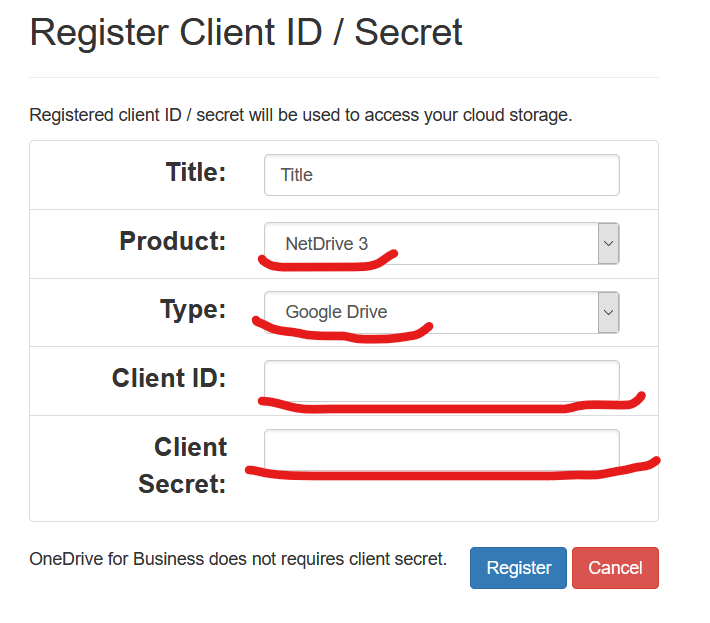
22. Click register and its done!!
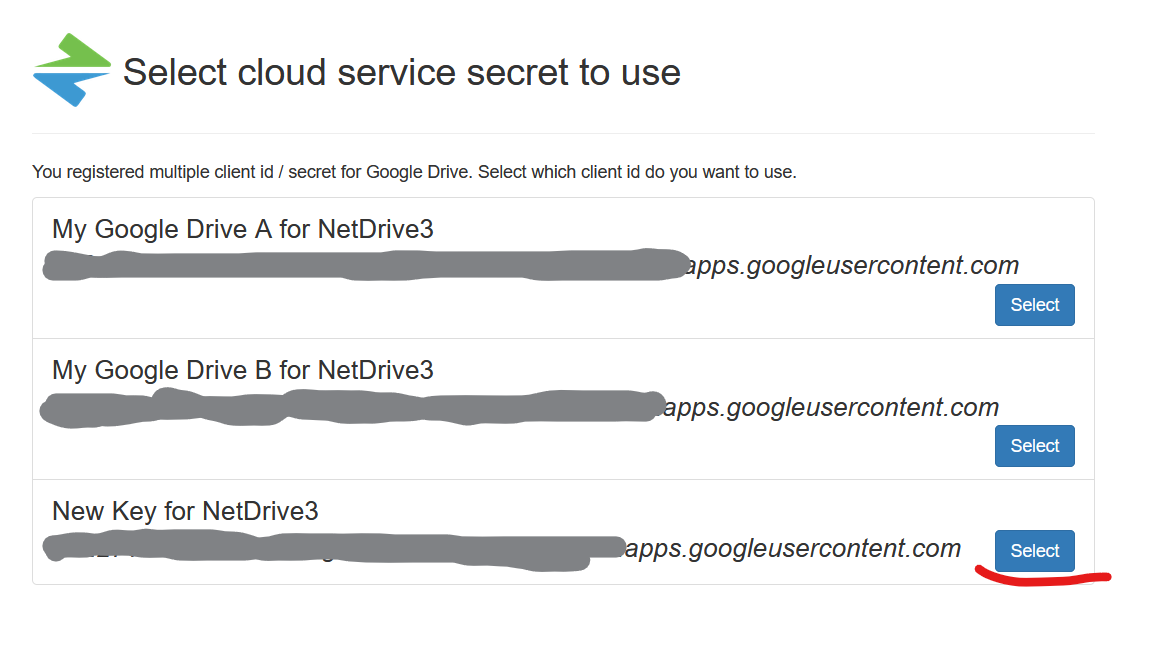
IMPORTANT: You have to add new drive item to use registered client id and secret.
When adding new Google Drive item web browser will be opened and you can select your client ID.
Was this article helpful?
That’s Great!
Thank you for your feedback
Sorry! We couldn't be helpful
Thank you for your feedback
Feedback sent
We appreciate your effort and will try to fix the article